¶ Sharing a Document Safely and Securely using the CHARMS Portal
¶ Sharing a Progress event from CHARMS
Click Modify.
On the appropriate row, hover over the arrow icon and choose Send This Record.

This will open with a view of the progress action, and allow you to search for recipients and add notes. Multiple recipients can be selected here. Any notes entered will appear on the recipients email, on the Portal under Notes, within the Details and in the Document Shared progress action notes that gets added.
By default, the progress item will be sent as read only - if you wish the progress action to be downloadable by the recipient, untick the relevant box.
Speak to your CHARMS Account Manager if you would like 'disable download' to not be ticked by default.
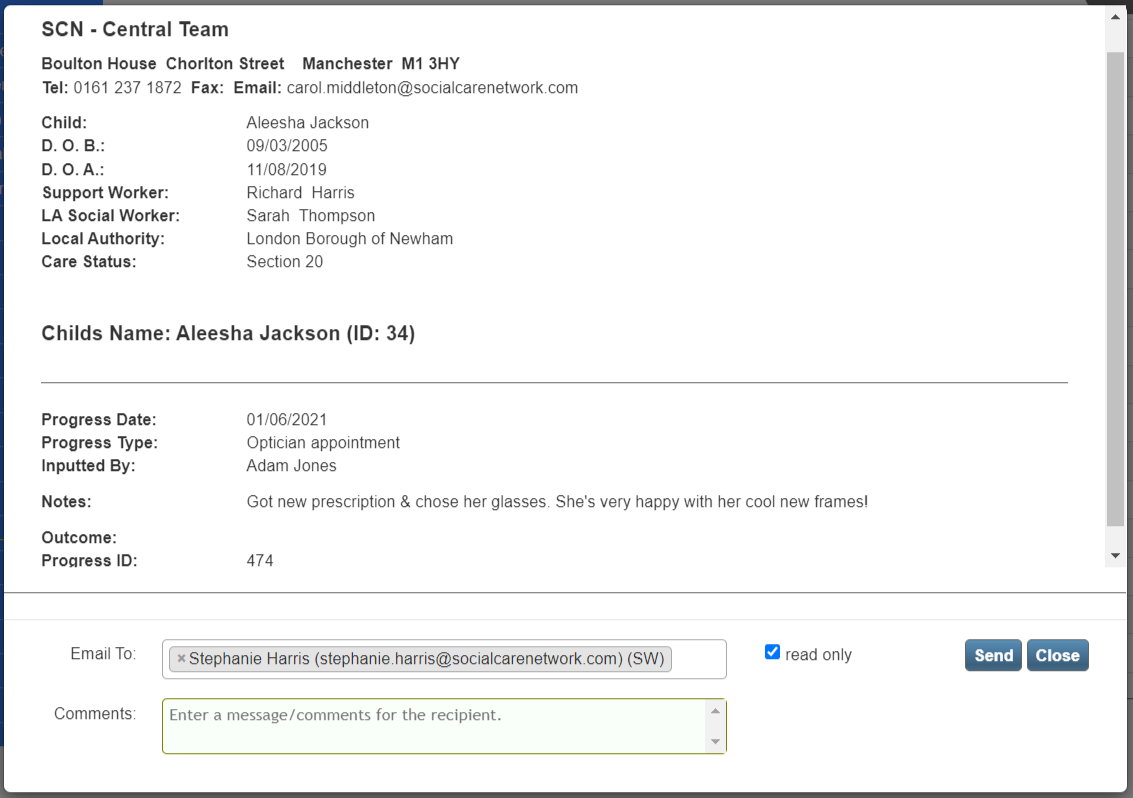
Click Send to securely share the progress action through the CHARMS-Portal. This will add a row to Progress called 'Document Shared' with the details in the progress notes.
¶ Sharing a Document from CHARMS
Click the documents icon containing the uploaded documents you wish to share. This will open a new window showing all the files currently attached to this progress action.
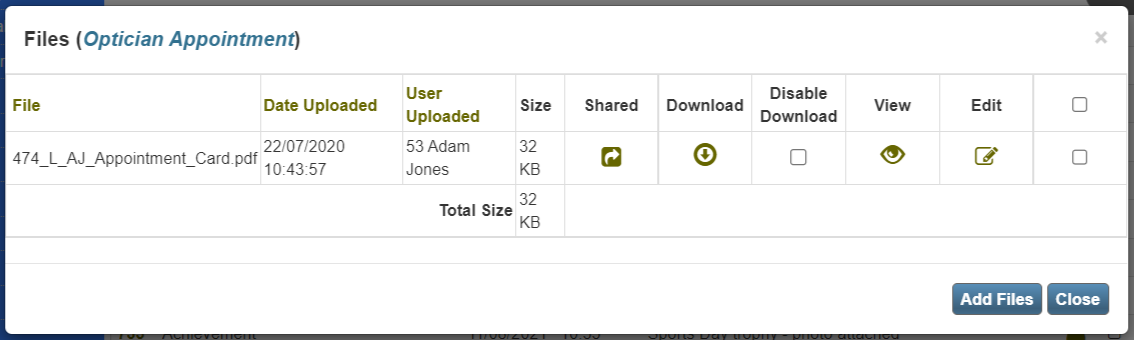
First, select which files you would like to share by ticking the boxes in the 'Tick To Select' column or select all by ticking the box at the column end. Once these are ticked, a Send option will appear - click that to open the window to choose the recipient.
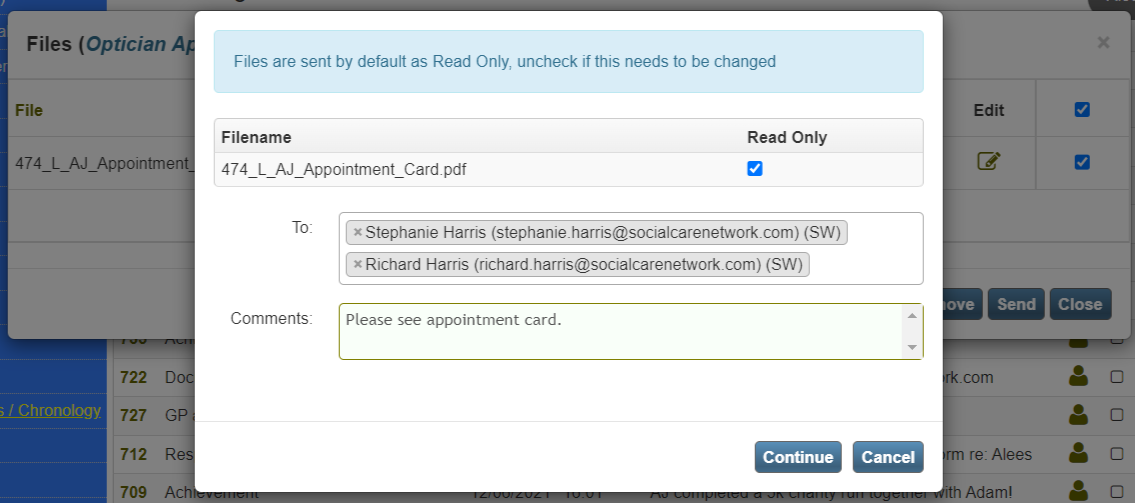
Search for your intended recipients and click Continue to share the document securely with them. A confirmation message will appear once the document is shared, and a progress event will be automatically added showing the details.
¶ Adding Users to the list
When selecting who to share a file with through the Portal there is a set list of contacts to choose from. This list will be drawn from any record in CHARMS where an email address is recorded, including Users, Staff, Families, Children, Commissioner Contacts, GPs, Other Professionals, and Social Workers.
To add anyone to the list of Portal contacts or amend anyone’s details you must edit the relevant lookup list or record in CHARMS. Before adding anyone to any list first always check that they do not already have an existing record. If they do not have a record on the system you can use the Add New button to create a record for them. The minimum information that needs to be added to the record is the first name, surname and email address but any more information you have can be added. Once you have added this information you can save the record and this individual is now available as a contact for the CHARMS Portal.
¶ Archiving a document shared via the Portal
Users with the permission MODIFY_ALL_REFERRALS will have access to the 'Shared' column/button. Clicking the Shared button in the Shared column will show data if the file has been shared via the Portal e.g. Document Share Date, Document Recipient Email, Document Shared By User, File Read Y/N and also if the file has been archived.
Within this screen the user can also click ‘Details’ and also has the ability to ‘Cancel’ which will archive the file and therefore it will no longer be visible to the recipient on the Portal.
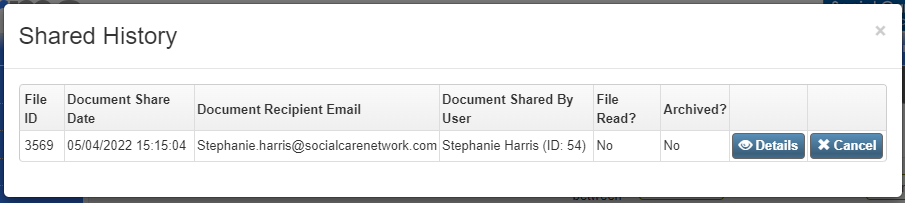
Please Note: Only progress files shared via the portal after the 10.06.61 upgrade, will have shared history available.