Please Note: User registration does not replace creating a carer/applicant login using the existing method, but is designed to be an alternative.
To enable an applicant (such as a foster carer or adopter) to register for their own CHARMS account (creating their own password, rather than their organisation), you can use the 'User Registration' feature on the applicant's Main Details page.
For any applicant who does not yet have a carer account set up, a button ‘Enable Account Registration’ will be displayed underneath their photo just above the individual's contact details. If this button is not present it means that the carer/applicant already has a CHARMS account set up.
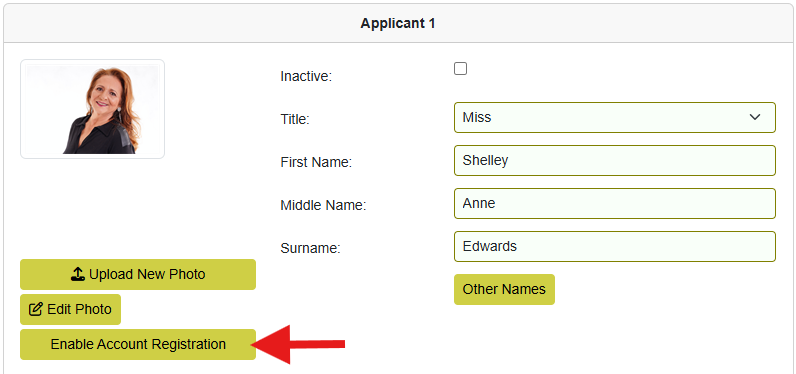
When 'Enable Account Registration' is clicked a screen is displayed and if the record already contains the applicant's email address in their main details then the email field will be pre-populated. If the record does not contain an email address in the main details then the popup will prompt the user to enter an email address.
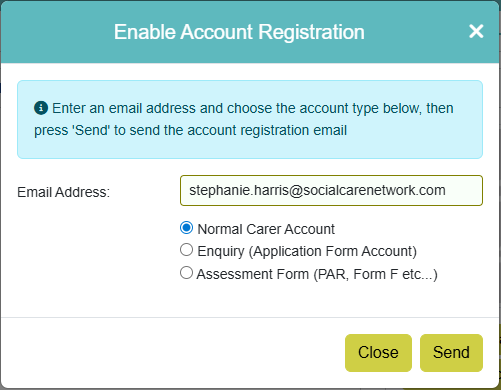
You will then need to select the appropriate account type.
- Normal Carer Account — A normal carer account with full access to carer specific functionality only.
- Enquiry (application form account) — Use the enquiry account type to allow the prospective carer access to the application form.
- Assessment form (PAR, Form F, etc...) — Use the assessment form account type to give the prospective carer access to review the Form F or PAR, and sign.
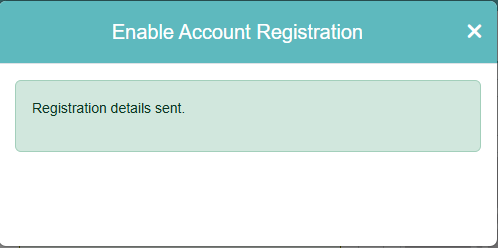
Click 'Send' to send a registration link to the applicant.
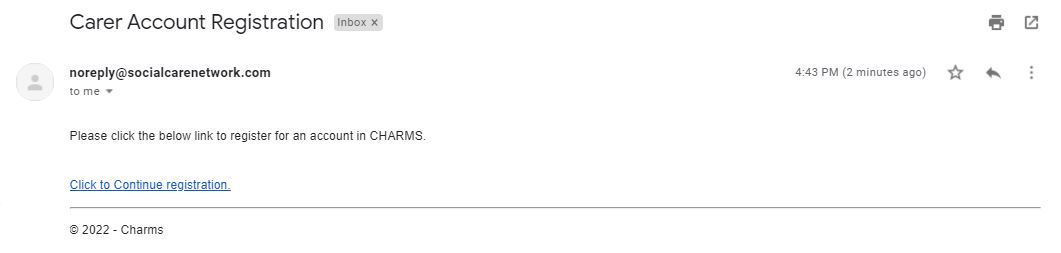
The applicant will then receive an email with a link to continue registration.
Until the applicant has setup their CHARMS account, when looking at the account in the Carer Login section, the Status will be shown as ‘Incomplete Account Registration’. If you need to re-send the registration email, click the 'Resend Registration Email' button.

Please Note: The email sent containing the registration link will expire after 48 hours. If the limit is passed upon clicking the registration link a message is displayed 'The token has expired, please contact the agency if you have not yet created your account.' The user account will also be archived. An email is also sent to the user/person who enabled the account to let them know when an account link has been clicked, but expired, but only after the first time an expired link has been clicked.
If a user account has been archived due to the user clicking an expired registration link (as described above), when the (agency) user enables/unarchives the new ‘carer’ user via family, carer login; then a new registration email is sent to the new ‘carer’ user as described above. The registration email will only be sent to those accounts that are in the registration process (e.g. Tbl_Users.OnlinePassword is blank and the user has CARER_ACCOUNT permission).
They will be asked to enter any personal information that has not already been added to their CHARMS record and can amend any existing inaccurate details. Here they can also upload a photo by clicking 'Upload Photo'. The applicant will then need to create their password and passphrase, following the on screen instructions.
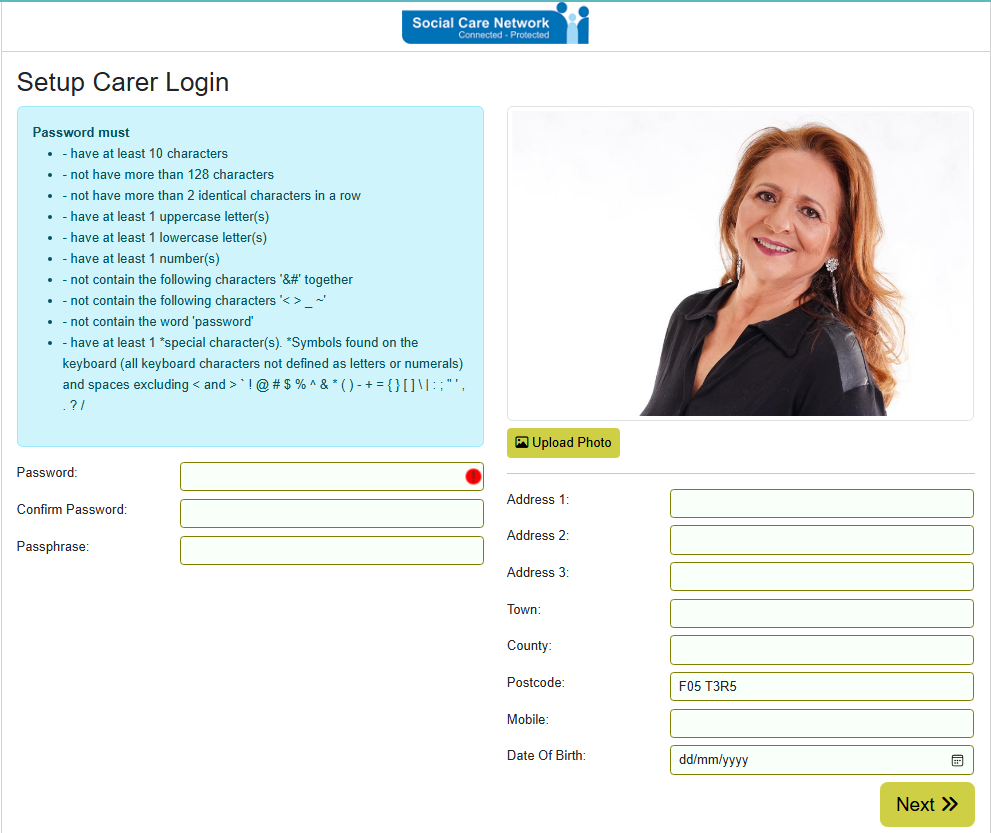
After entering their information and creating their password and passphrase, the applicant will then need to click 'Next'.
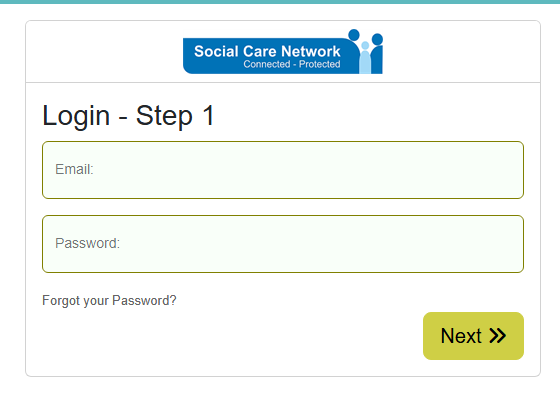
They will then be taken to the Main Menu and from this point will be able to log in/out of CHARMS as normal.
When an applicant starts or completes the registration process the following actions are automatically added to that family's progress:
- 'App 1 Account Registration Started'
- 'App 1 Account Registration Completed'
- 'App 2 Account Registration Started'
- 'App 2 Account Registration Completed'