If a potential match has been identified for the family, the details can be recorded using the Potential Links feature. Potential Links can be recorded from both child and family records.
From a family's Main Details page, click 'Potential Links' on the left sidebar. This will open the Potential Links section. To add a Potential Link to a child click 'Modify', then 'Add New'.
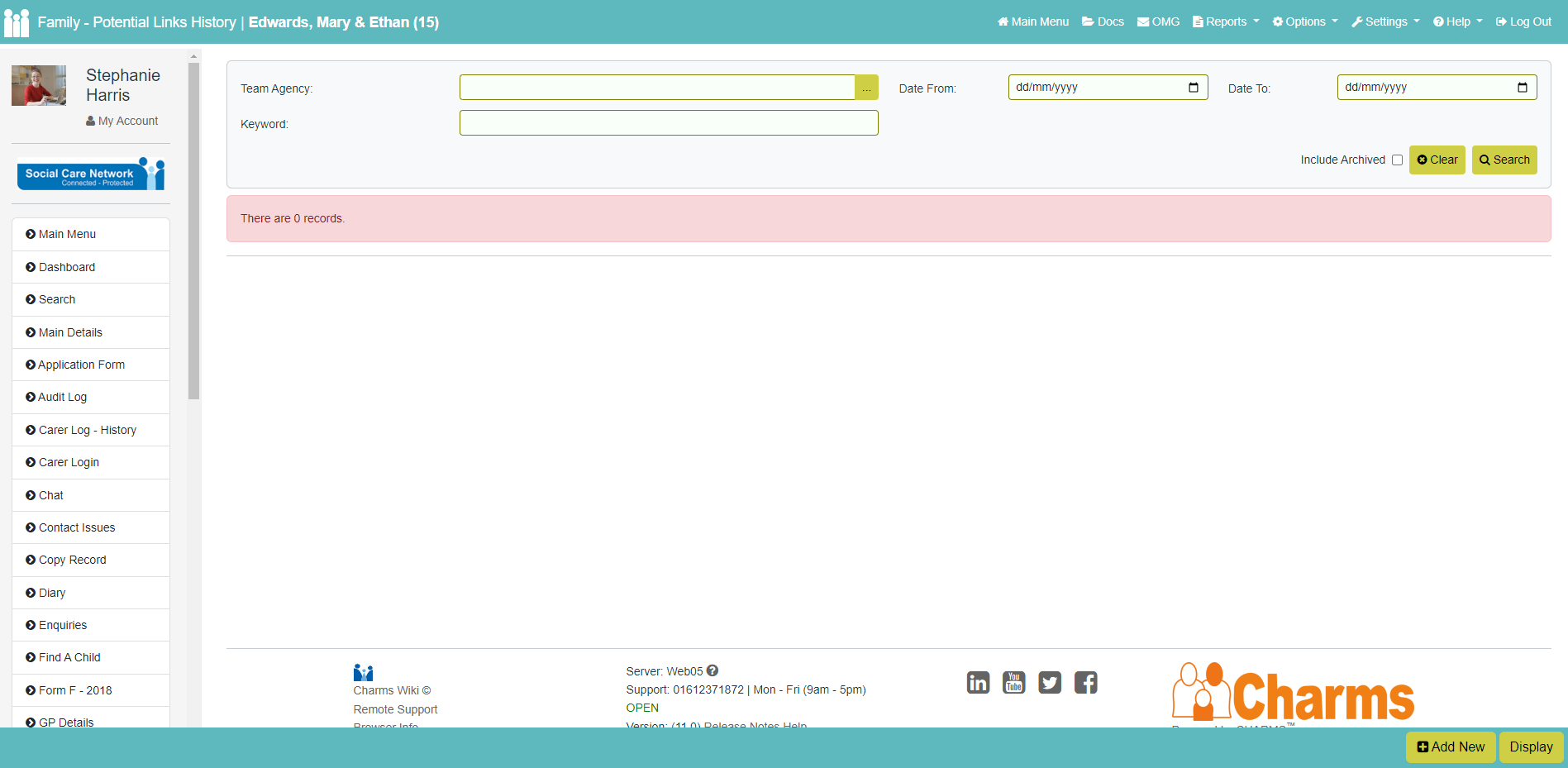
To add a Potential Link to a child click 'Modify', then 'Add New'.
Select a child record to create a new Potential Link by clicking the ‘…’ button to search and select the relevant child from the list. 'Link Date' populates with the current date but can be overridden if required.
If a user has the permission "VIEW_CHILD_SEARCH_CROSS_MODULE" or "VIEW_FAMILY_SEARCH_CROSS_MODULE" then, when searching for potential children/families this search will include children and families in all modules for which they have permission. These permissions can only be allocated by SCN staff and is not visible in the list of permissions for ordinary users. Please speak to your account manager if this permission is required.
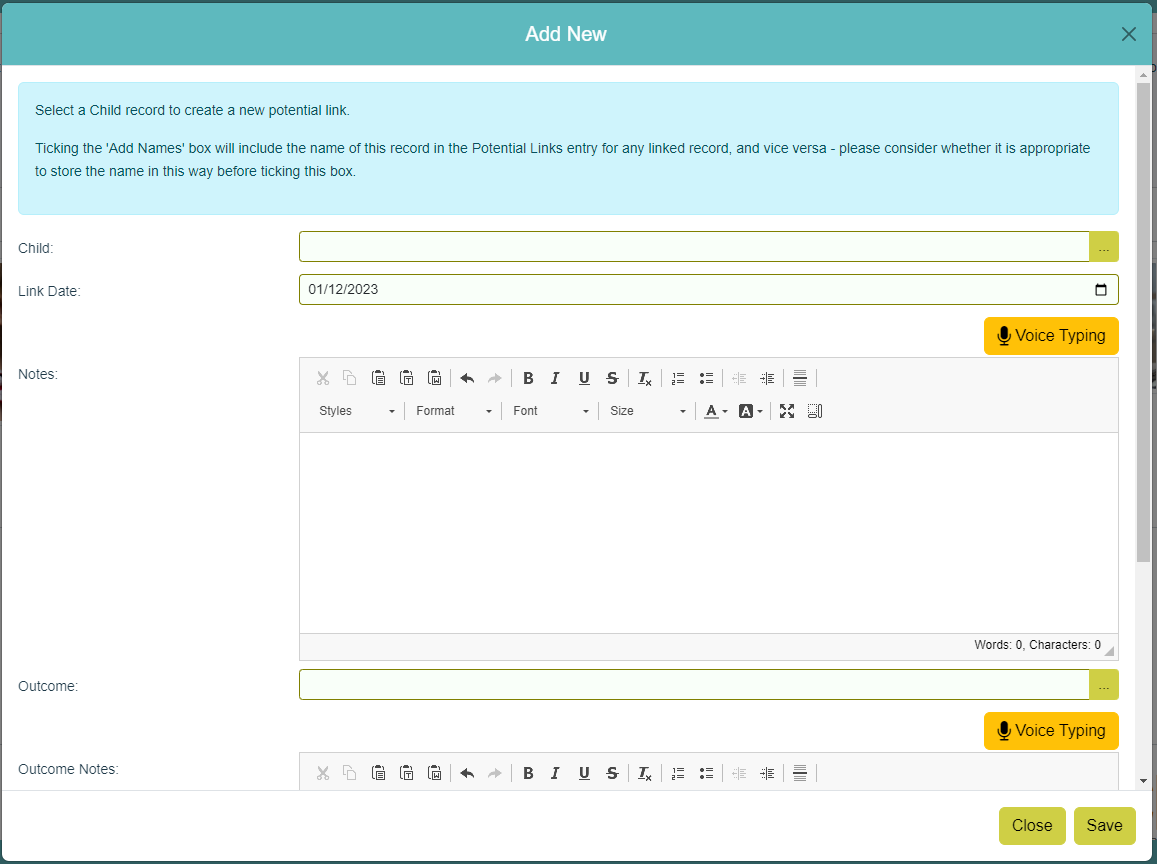
Enter any relevant Notes and Outcome and tick the 'Add Names?' box if you want to include the child name with the ID number in the progress item that will be created. Multiple Outcomes can be selected, if needed.
Values are selected from the lookup list 'Potential Link Outcomes' which can be populated by users with EDIT_LOOKUP_LISTS permission. The lookup list includes an archive option if the value added is no longer required.
Clicking 'Save' will create a new row in both the child and family's Progress, and you will return to the 'Family - Potential Links History' screen where the Potential Link you have just created will be shown.
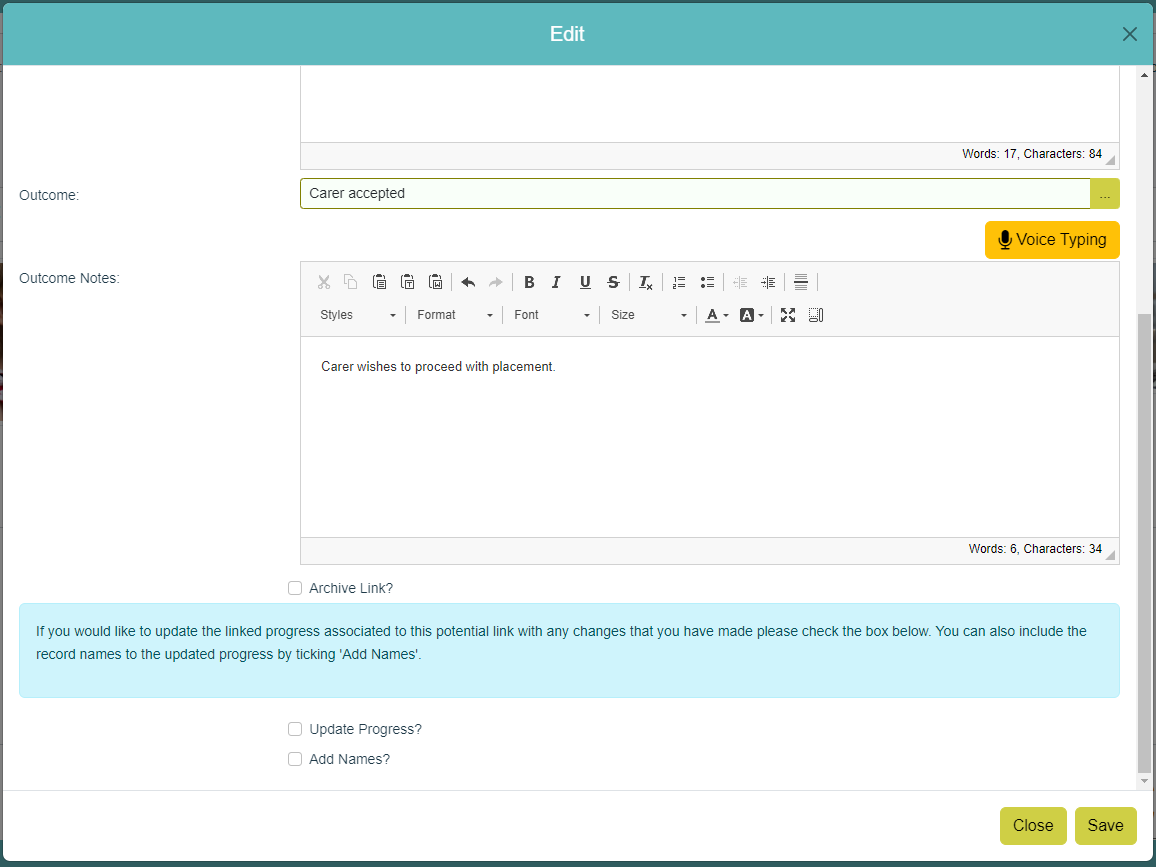
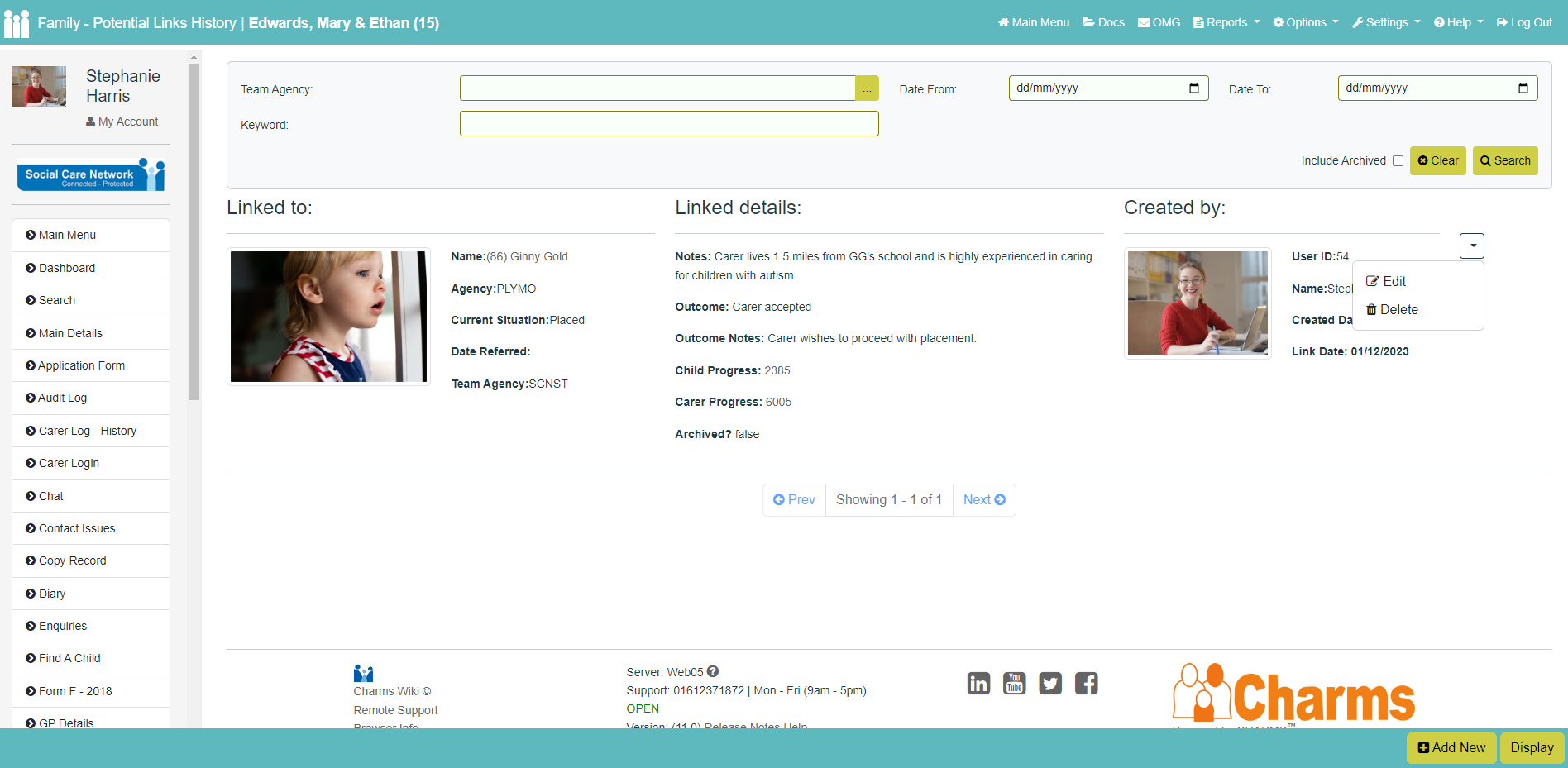
If you need to delete or edit a Potential Link (for example, to add an Outcome), click the small button to the right.
If a Potential Link is deleted a new row will be added to both the family and child's Progress called 'Potential Link Deleted'.
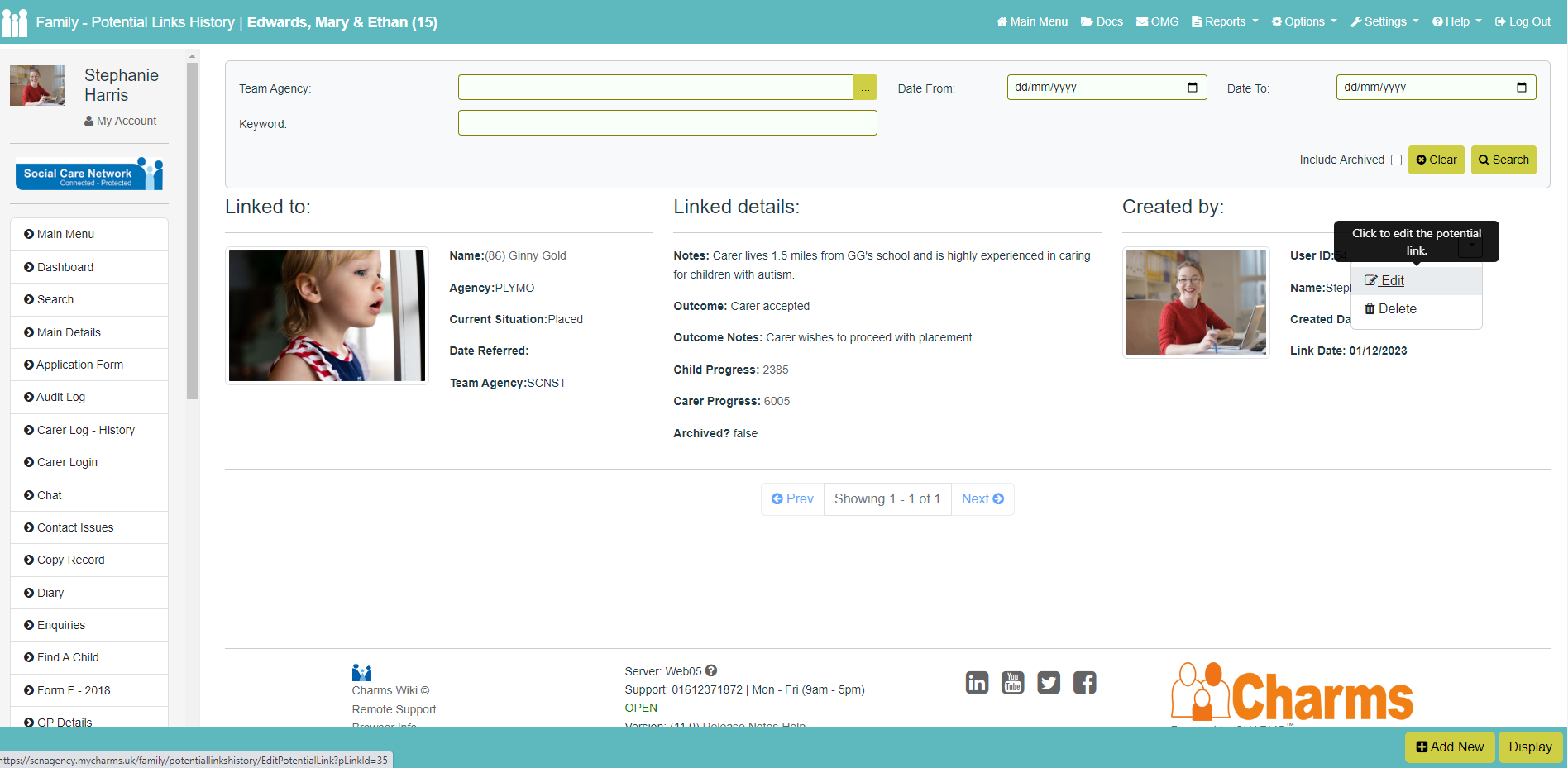
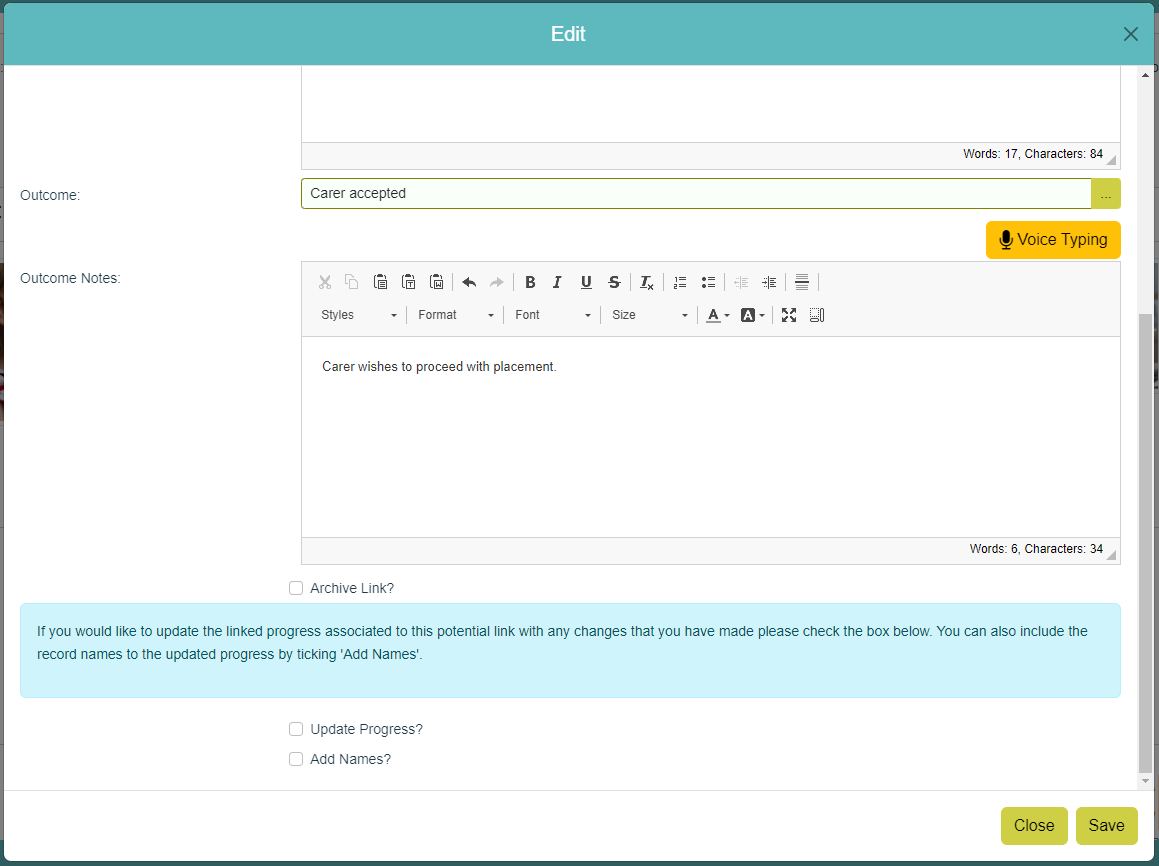
If you have amended the Potential Link you can select 'Update Progress?' to update the Progress Item that was created.
Here you can also select 'Archive Link?' to hide it from the 'Family - Potential Links History' page (unless 'Include Archived' is selected).
From the family's Progress screen you will see the new row that has been created. The 'Outcome' box of this Progress will contain the 'Outcome Notes' notes from the Potential Links section.

¶ Sharing a Potential Link with a Carer
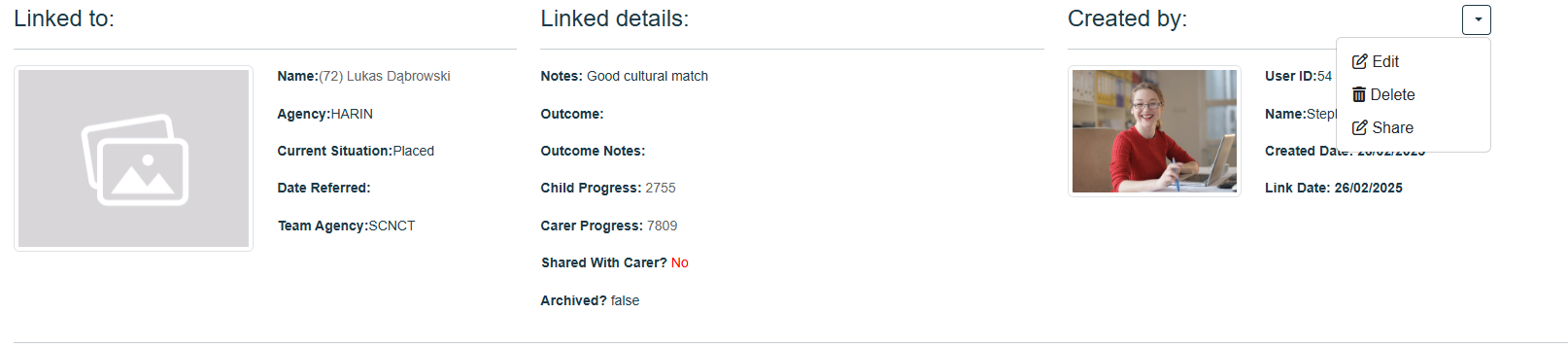
To share a potential link with a carer, first click the small arrow on the potential link, then click 'Share'.
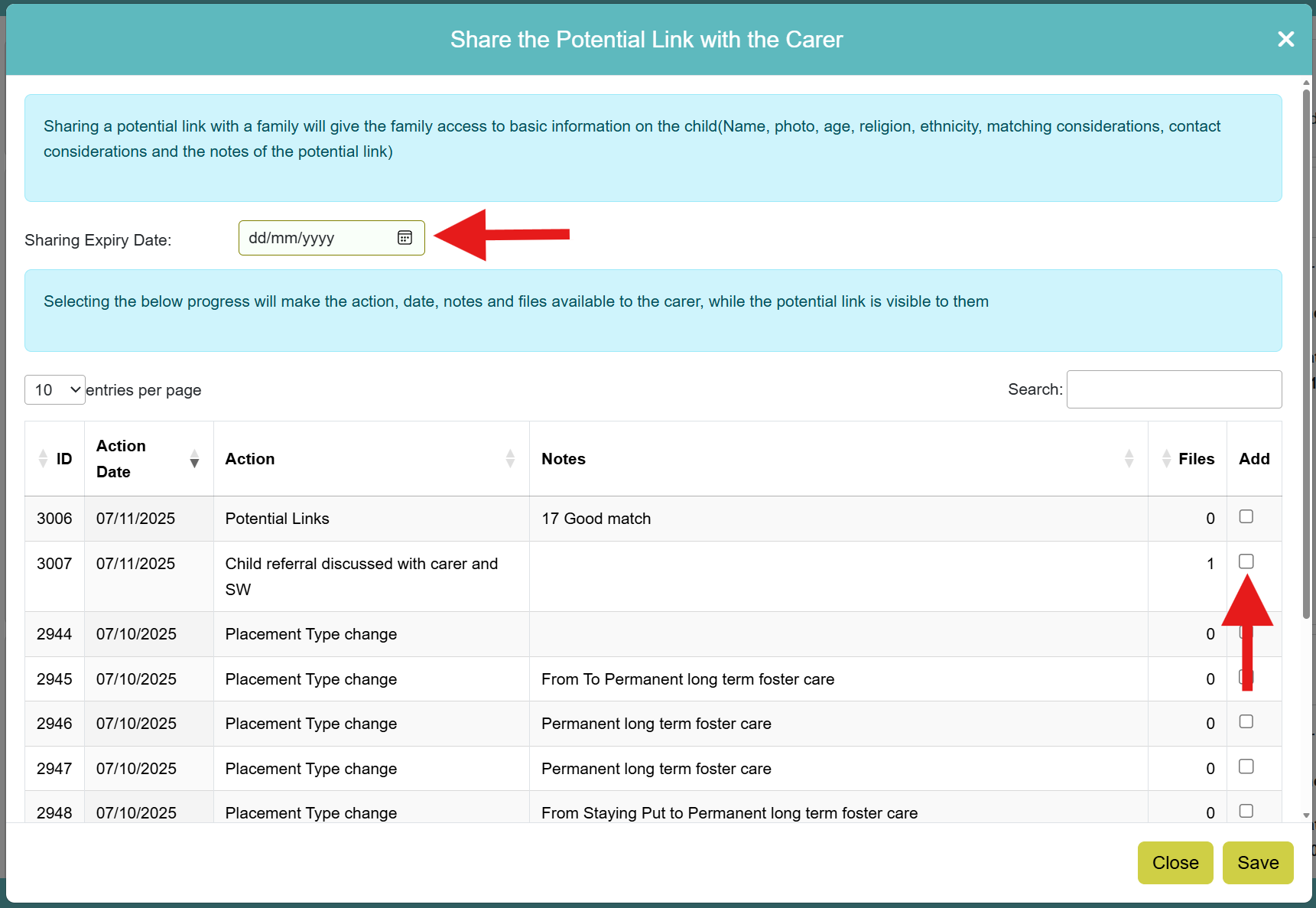
A box will pop open detailing what will be shared with the carer and will ask you to enter a date that you wish the sharing to expire. You can also share selected progress actions from the child's Progress, tick the appropriate action in the ‘Add’ column to share the action with the carer within the potential links section when the carer logs into CHARMS. This is perfect for sharing referral documentation regarding an individual with a potential family. Click 'Save' to complete the sharing.
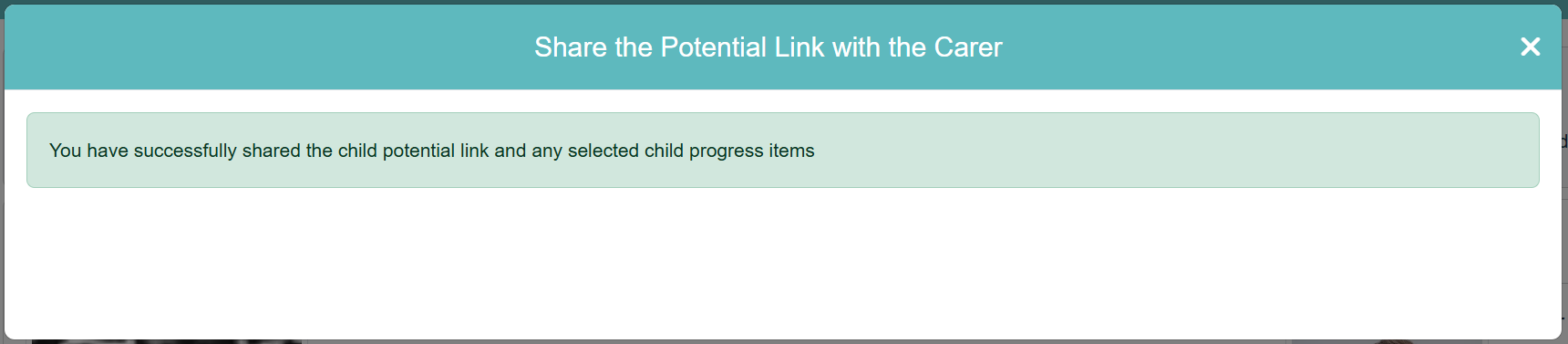
A confirmation will be displayed.
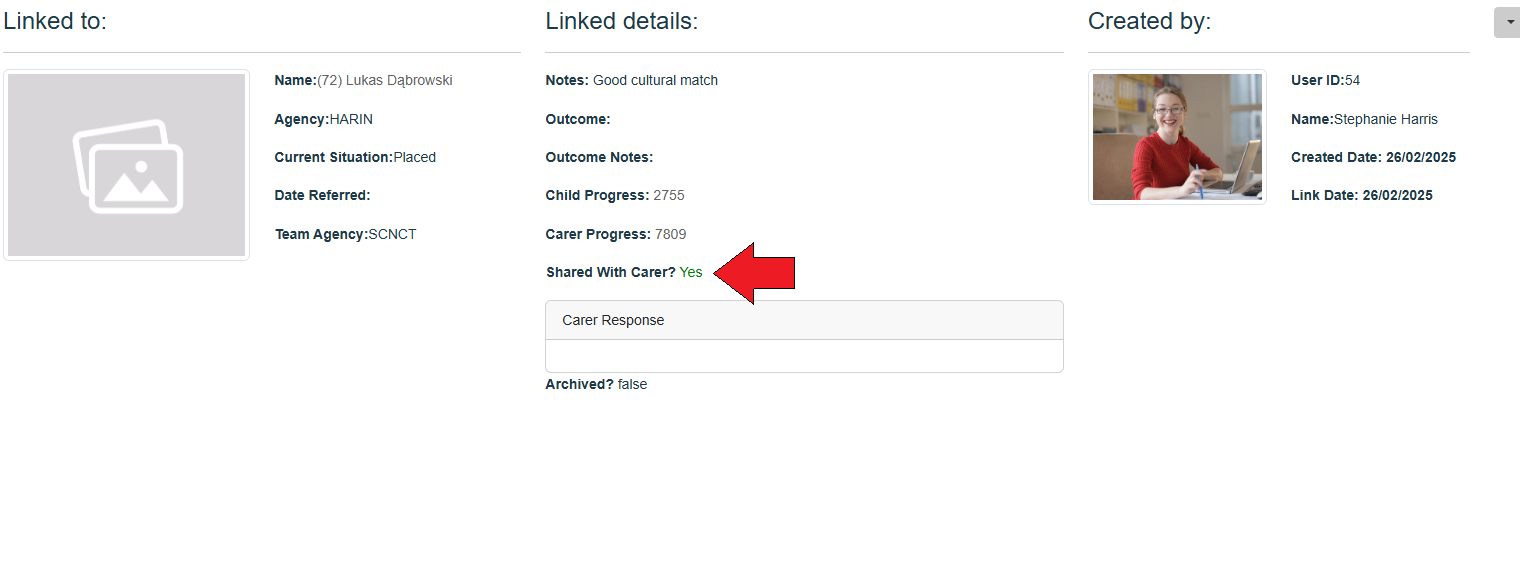
Once shared, the 'Shared With Carer?' field will be updated to 'Yes'. When the carer has responded it will be be displayed in the 'Carer Response' box.