To view the family record or to share it with users outside of CHARMS, click the Record Card section on the navigation menu. This will open in a new tab in your browser.
The record card header will consist of your agency logo (if uploaded) and details of the agency code currently allocated to the family.
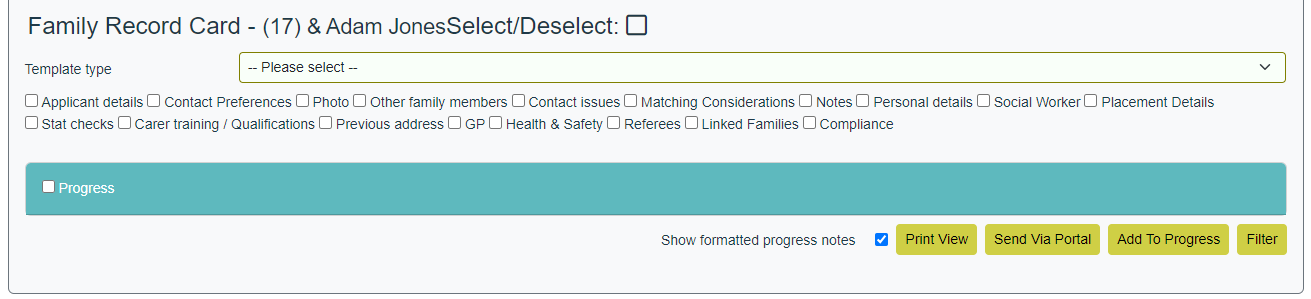
You can choose which sections should appear on the Record Card using the filter tick boxes. By default, they will show as ticked. Choose which sections should appear, filtering by type or date for Progress, and click Filter to change the view on screen.
Any progress items ticked as third party confidential will not be output.
If 'Show formatted progress notes' is left ticked, progress and outcomes notes will be output with the original formatting. If unticked, progress and outcomes notes will be output as plain text.
¶ Sharing the Record Card
If you wish to print the Record Card for any reason, click the Print View option - this will open the Record Card in a printer-friendly format.
If you wish to share securely with user outside of CHARMS, through the CHARMS Portal, click the Send Via Portal option.
This will prompt you to choose from a lookup list. Choose the appropriate recipient, tick or untick the Read Only option as appropriate, and click Send.

You will receive a confirmation message that the record card has been shared with the chosen recipient, and a progress action called "Document Shared" will be added to show that you have shared with a particular recipient.
To close the record card click the cross in the top right of the new tab.
¶ Adding the Record Card to Progress
To add a snapshot of the record card to progress, filter for all the appropriate sections and details, and click the Add to Progress button.
This will add a progress item called 'Record Card Generated' with the current date and time, and attach the current version of the record as an uploaded .docx file.
