From the CHARMS Main Menu, click 'Families' on the Record Counts widget.
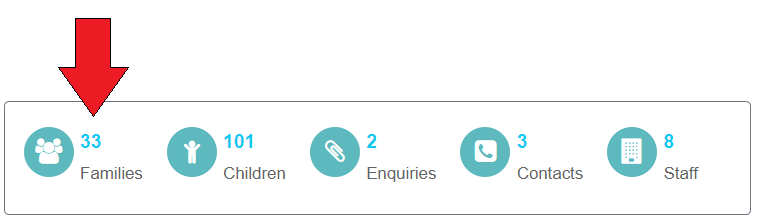
This will open the ‘Search - Families’ screen.
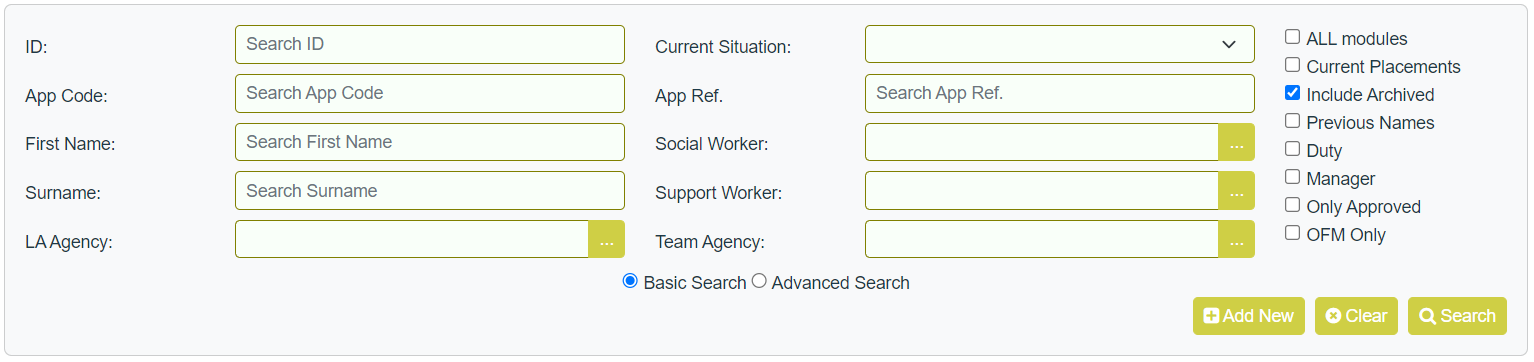
Here you can search for a child by:
- ID - this is the unique ID created by CHARMS when a record is added to the system.
- App Code -
- First Name - searches both app 1 and app 2 first name.
- Surname - searches both app 1 and app 2 surname.
- LA Agency - click the ‘…’ button to select from the lookup list, Agency on a family record is the referring Local Authority area in which the family lives.
- Current Situation - Click the ‘…’ button to select from the lookup list.
- App Ref. -
- Social Worker - click the ‘…’ button to select from the lookup list.
- Support Worker - click the ‘…’ button to select from the lookup list.
- Team Agency - click the ‘…’ button to select from the lookup list.
- ALL modules - allows the user to search for a family record across all modules they have access to. This requires the permission "VIEW_FAMILY_SEARCH_CROSS_MODULE" which can only be allocated by SCN staff and is not visible in the list of permissions for ordinary users. Please speak to your account manager if this permission is required.
- Current Placements - allows the user to search for a family with current placement/s only.
- Include Archived - filter for Archived, Un-Archived or all records
- Previous Names - allows the user to include previous names in the first name and surname search boxes.
- Duty - Ticking the Duty box will return any families that have the Duty tick populated on the family main details and whereby there is action to be taken by the Duty Social Worker.
- Manager - ticking the Manager tick box will show any families where the record has been ticked on Main Details for Manager follow up.
- Only Approved - allows to the user to search for families who are approved only.
- OFM Only - allows the user to search for other family members only. Using OFM Only will only search other family members when using first name and surname search.
Please note: By default, 'Include Archived' is ticked so that when searching for child records, the results include archived/closed records. This is required to help prevent users adding duplicate records onto CHARMS.
It is possible to amend the default so that ‘Include archived' is not ticked, which means, by default, archived records are not returned on the child search screen, unless manually ticked. Speak to your account manager if your agency wishes to amend the default so that ‘Include Archived' is not ticked (Tbl_CharmsConfig.DisableIncludeArchiveByDefault).
If your agency does amend this default setting, ensure that users are made aware that they will need to manually insert the tick when searching, prior to adding new child record, to avoid duplicate records being added into CHARMS.
Select 'Advanced Search' to open more search options:
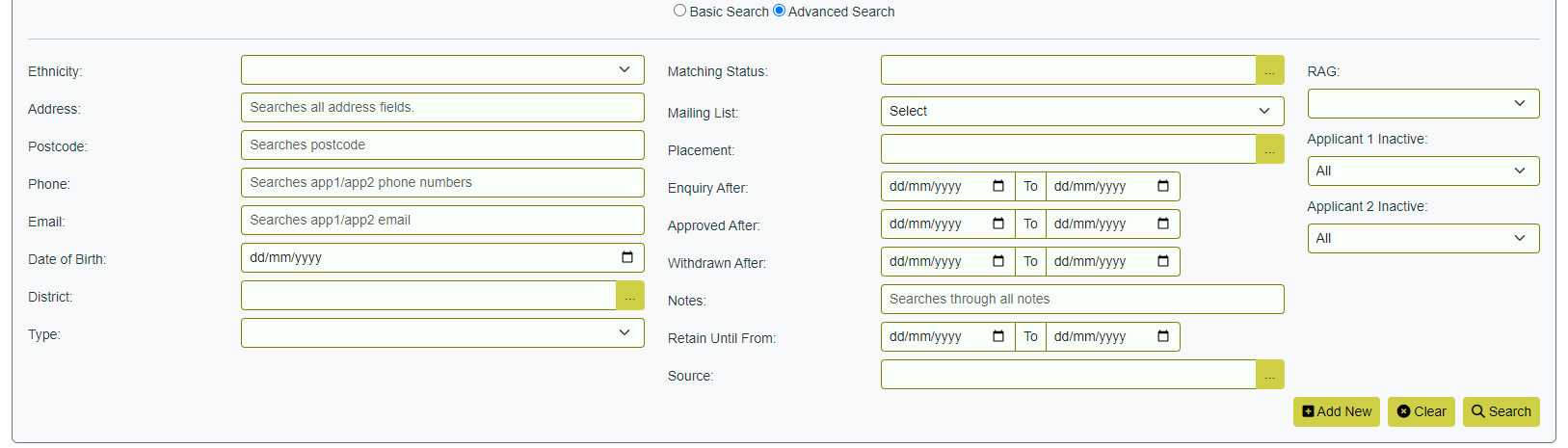
- Ethnicity - click the ‘…’ button to select an ethnicity from the lookup list.
- Address - searches the following fields: Address 1, Address 2, Address 3, Town and County.
- Postcode
- Phone - searches app 1 / app 2, telephone, mobile and work numbers.
- Email - searches app 1 / app 2 email addresses.
- Keywords - use this to search by a Date of Birth, for example
- District - searches the district associated to the family on the Main Details screen.
- Type - If your agency uses the agency ‘Type’ within the lookup list, use this dropdown to filter by Type, based on the family LA agency.
- Matching Status - click the ‘…’ button to select a matching status.
- Mailing List - choose from the dropdown list.
- Placement - click the ‘…’ button to select from the lookup list.
- Enquiry After/To - use to search for families who enquired either before or after the dates entered.
- Approved After/To - use to search for families who were approved either before or after the dates entered.
- Withdrawn After/Before - use to search for families who withdrew either before or after the dates entered.
- Notes - using the ‘Notes’ you may search for a family using any notes (except progress notes) as recorded within the notes section of their record.
- Retain Until From/To - Use to search for child records that have a retention date.
- Source - click the '...' button to select a source from the lookup list.
- RAG - This will filter the results by the RAG rating 'Carer Indicator' on the Main Details of a family record.
- Applicant 1 Inactive - searches the active status of applicant 1.
- Applicant 2 Inactive - searches the active status of applicant 2.
Clicking the 'Filter List' button or press the enter/return key on your keyboard to return the results of the search.
Any resulting family records will be displayed whereby you can then use the Sort By to re-order the results if required
Click the ID link on the family record that you want to view or modify and you will be taken to the Main details tab of the selected family
If any families have a Personal Detail recorded that has been marked as 'Flagged for attention', they will appear with a flag icon against their name.

Any records that have been archived will show highlighted in red and italicised.

Selecting 'Basic Search' will close the advanced search options.
Please Note: If you are in the incorrect record, on the left hand-side of the family record click the 'Search' link to return to the family search screen.
The 'Placements' column will show a number indicating how many children (if any) are currently placed with them.

Clicking on this number will open a popup showing brief placement details.
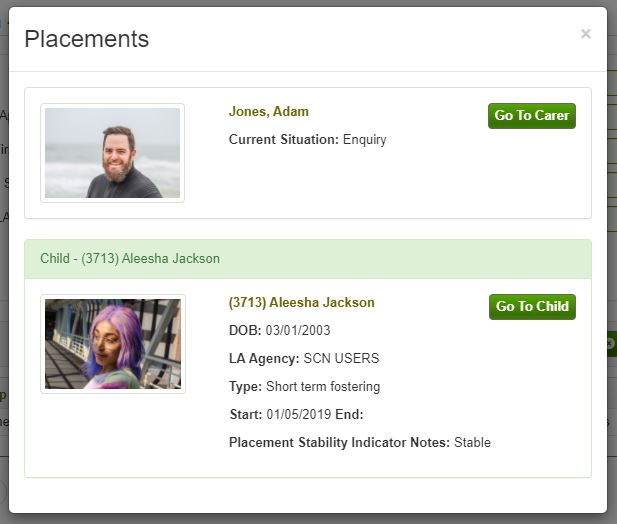
Clicking either the 'Go To Child' or 'Go To Carer' button will take you directly to the child/carer record.