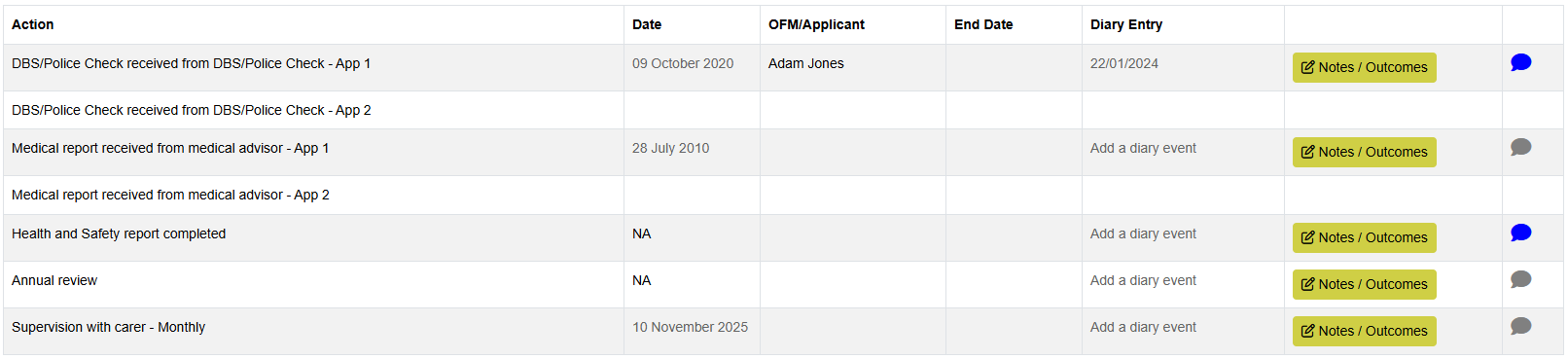
The Stat Checks screen is read only. Once key events have been recorded into the family’s progress screen on CHARMS then the stat checks screen can be a useful monitoring tool for tracking key events in relation to families. For example this screen is useful for tracking the assessment process e.g. references outstanding. It can also be useful once a carer has been approved e.g. this screen could show the latest supervision date. If the same action has been recorded on different dates within the family’s progress, the Stat Checks screen will show the latest date recorded. The 'Date Completed' can be clicked on to take you directly to the progress item.
Please Note: The items that appear within the Stat Checks tab on a family record needs to be set up by a User Manager in the Assessment Checklist Setup screen.
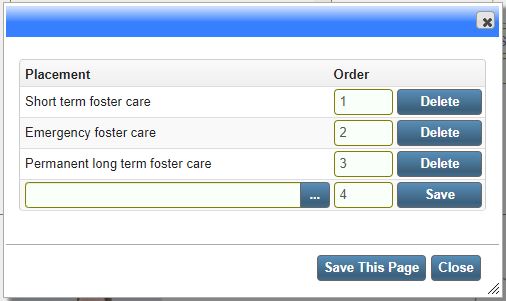
The list of checks that appear on the Stat Checks screen are linked to the placement types on the Family - Main Details and those checks allocated to the placement type which is Order = 1 will be displayed, for example:
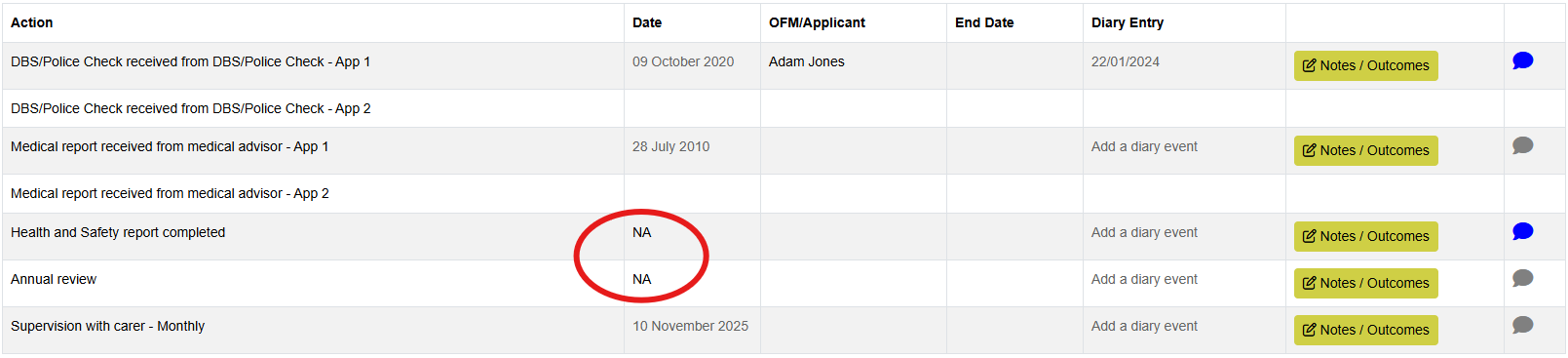
If a check is not applicable to the family for any reason, double clicking in the Date Completed field against that check will put an 'NA' in the box to make that clear. Double clicking on an 'NA' entry will remove it. If a compliance widget action is marked as N/A, this will be reflected on the checklist, and vice versa.
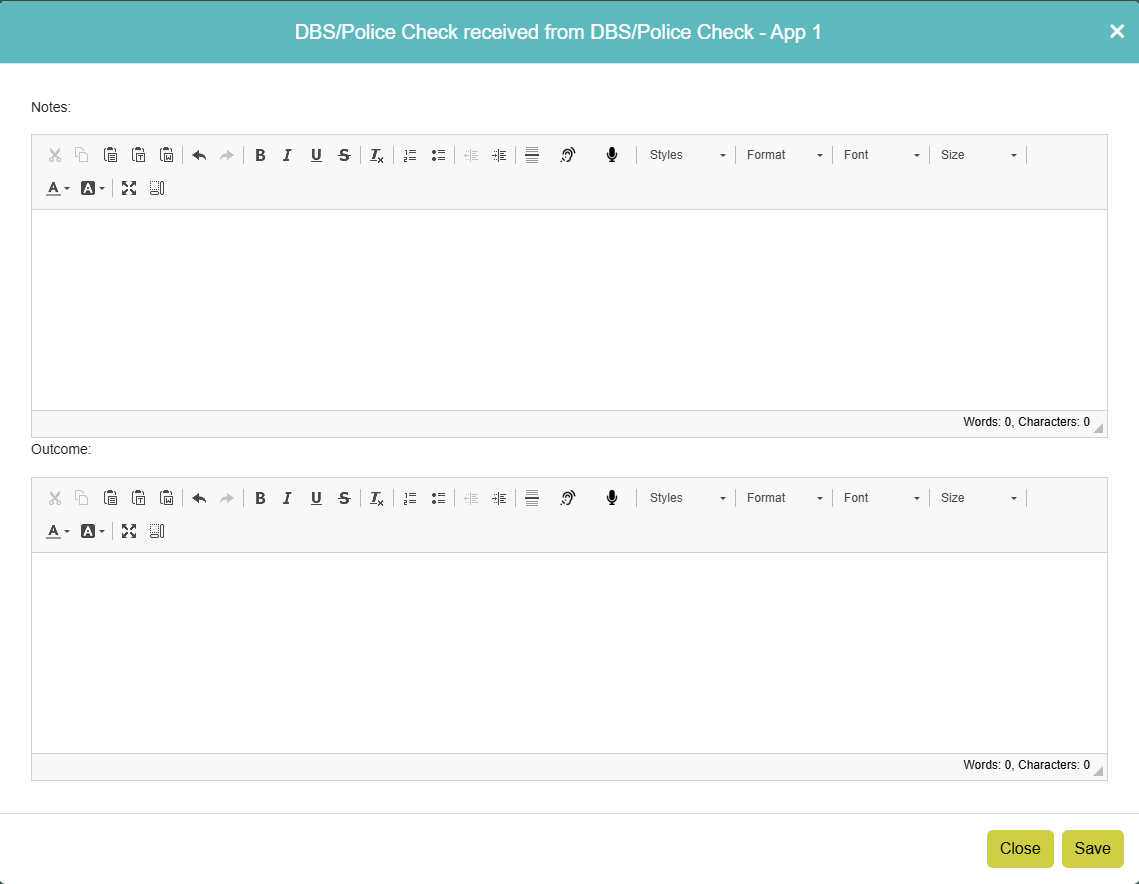
Clicking the ‘Notes/Outcomes' button on a stat check item will pop open a box where you can enter any relevant notes. Click the ‘Save’ button once you are done.
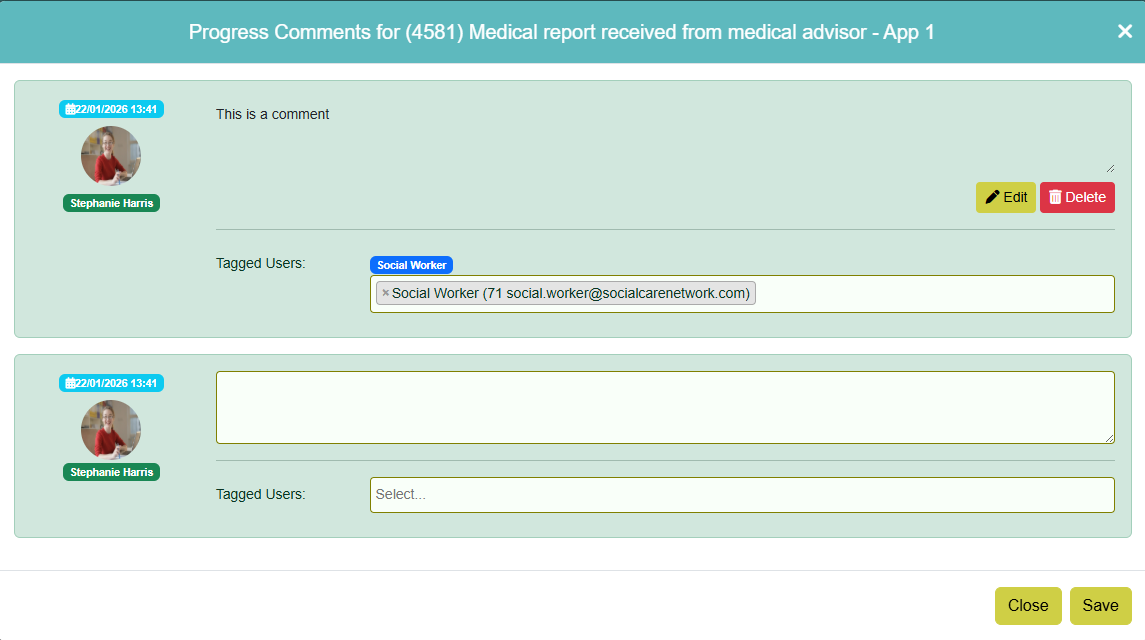
Clicking the speech bubble icon on a stat check item will pop open a box where you can use the Comments feature. Once a comment has been left the icon will turn blue.
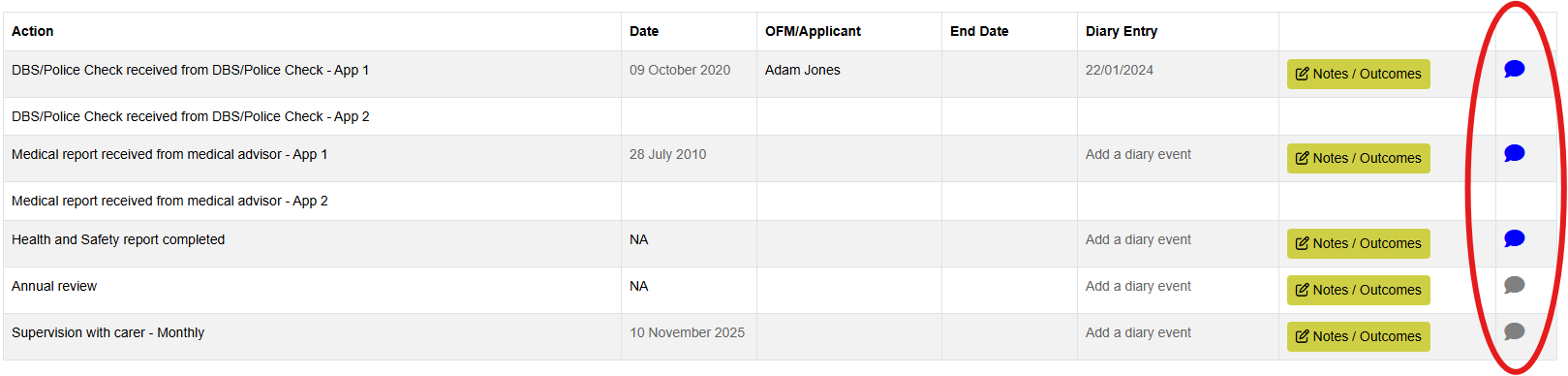
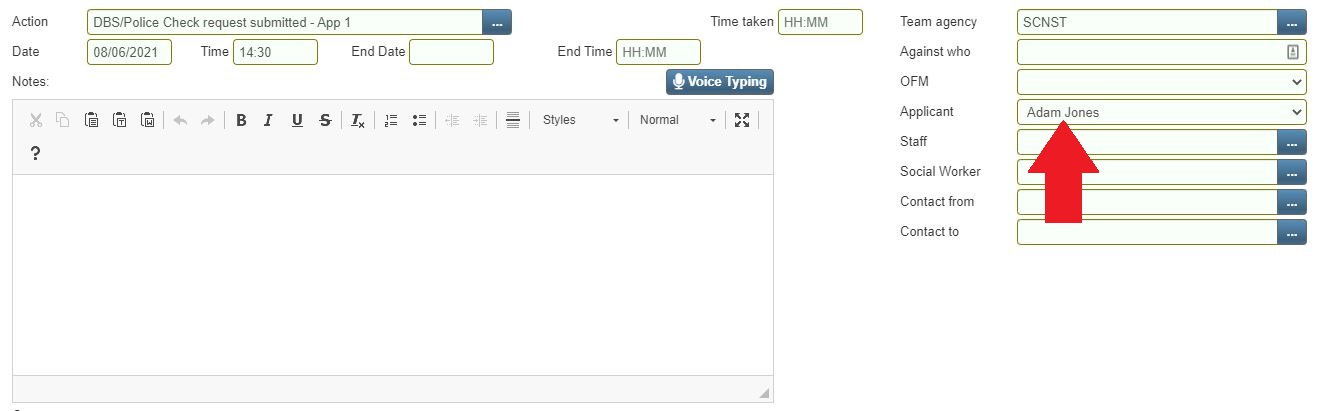
Any items that relate to a specific applicant or other family member will show the name of that person, as long as the name has been selected in the appropriate box on the Progress screen.
‘Diary Entry’ will show the diary reminder date (if the progress item has a linked diary item).
Clicking on the date will open the diary details where you can edit if needed.
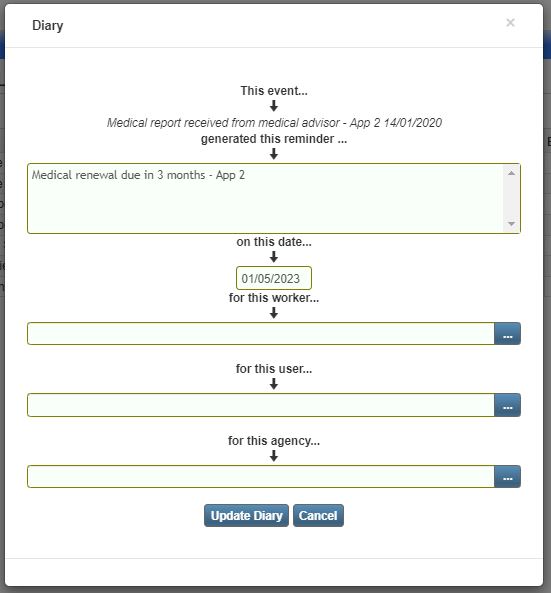
If the progress item exists in family progress but doesn’t have a linked diary item, a link will be available to 'Add a diary event'. When clicked, if a diary item is being added for a progress action that already has a reminder period and reminder message setup in the action lookup list, the diary screen that opens will add the relevant date based on the reminder period set, and will also populate the reminder message. These can be amended if required.