On the Main Menu > Alerts widget, the ‘Progress Notifications’ alert will show a count of how many new actions match your Progress Notification settings.
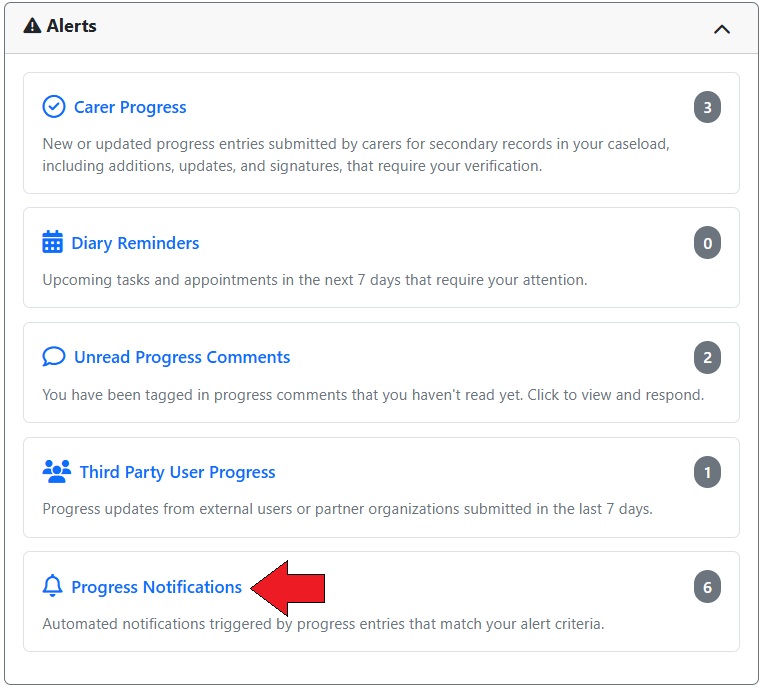
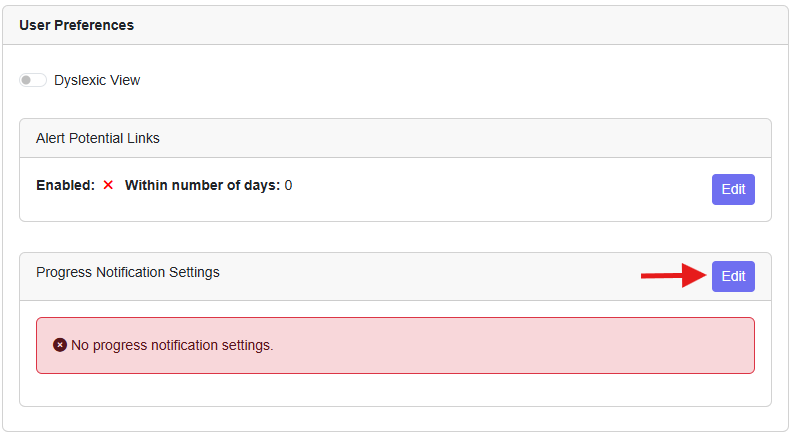
For how to set up personalised progress notifications, please see My Account > User Preferences
Clicking on the alert will open the Progress Alert Notifications screen, which gathers all relevant progress actions across all record types into one place.
Each item shows details of the record, e.g. name, record ID, progress action, progress ID, progress notes, which user entered it, verification info, and any attached files.
You have the ability to filter by Team Agency to help you find relevant records more easily.
Tick the ‘Only NOT verified/signed by me’ tick box to filter for actions not signed by you.
Clicking the ‘Edit’ button (at the top right of the screen) will open the ‘Edit Progress notification settings’ box where you can amend the number of days for alert notifications and configure which actions or tags for each progress group you want alerts for.
From this screen you can sign/verify progress without needing to open each record individually by clicking the Sign/Verify ‘tick’ icon.
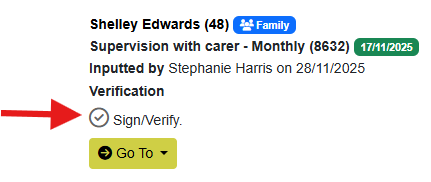
Clicking the ‘Go To’ button on an item will give you the option to jump to the record's Main Details or Progress.