Within the progress screens for children, families and staff, there is the facility to prompt another user to sign a particular progress action.
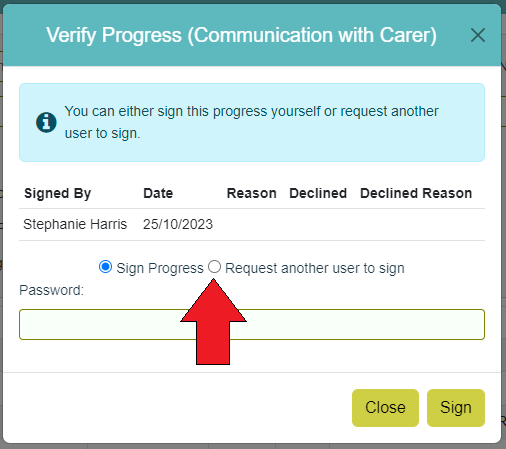
Click the 'tick' icon against the progress action you want signing - this will open the Verify Progress prompt, which will show any users who have already signed this action, as well as allow for requests for signatures. To request a signature, select 'Request another user to sign'.
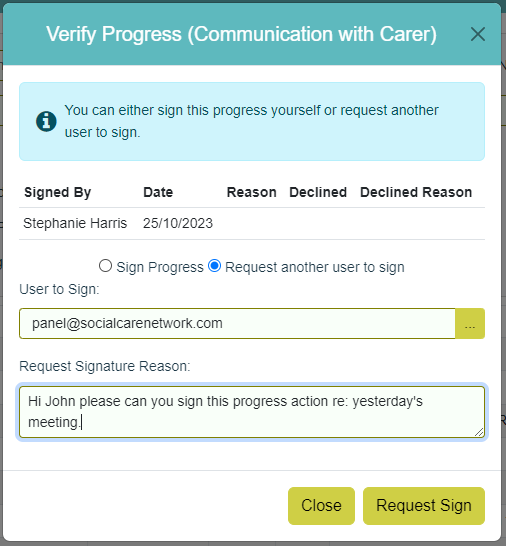
Choose the user who you wish to sign the progress action from the lookup list, enter the reason for the signature request, and click 'Request Sign'.
The user will receive an email prompt (from noreply@socialcarenetwork.com) to log into CHARMS to view the signature request.
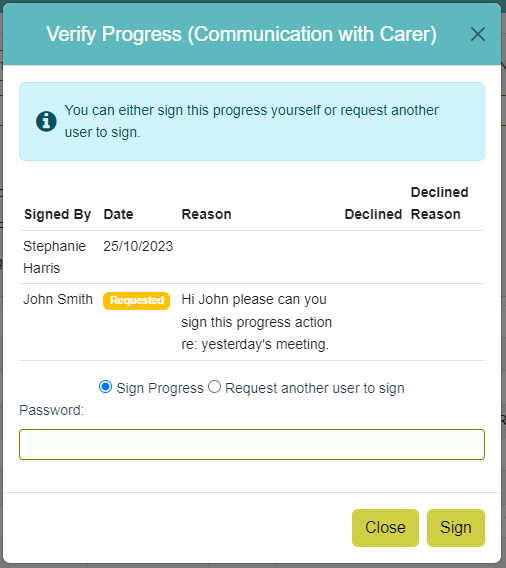
Any users who have been requested for a signature but who have not yet signed will appear in orange in the Verify Progress prompt.
This feature is not intended for Third Party Users or Carer Login. If a Third Party User or Carer is required to sign a progress action, please tick the relevant boxes on the relevant progress action.
If a Panel member signature is needed for a particular progress action they can also be requested from this screen. If a Panel member does not have access to that family a red message will appear informing you of this. Any action that needs to be made visible to the Panel member would still need to be marked as 'Visible to Panel Member'.

When that user next logs visits the main menu in CHARMS, they will see a prompt within the Alerts widget, notifying them of outstanding progress action to sign.

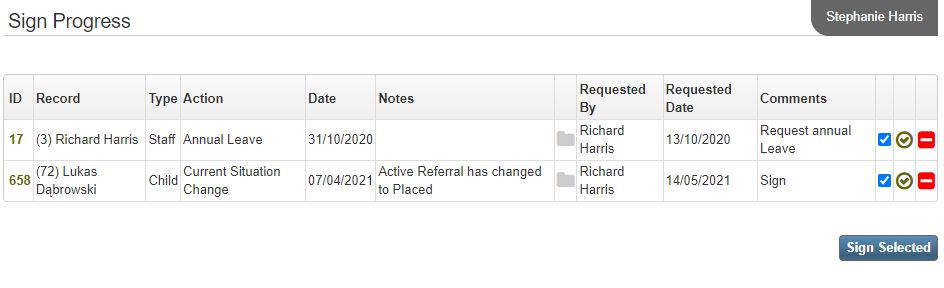
Clicking the 'HERE' button will show the actions that need signing, the record they belong to, any progress notes, uploaded files, and the details of the request. Click the ID to view the progress action, or click the green 'tick' icon against the required action to enter your CHARMS password to sign the action.
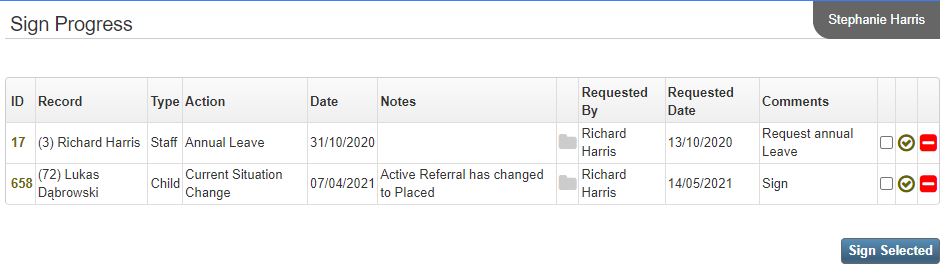
There is also the option to sign multiple progress actions in bulk. Click the tick boxes next to the actions you wish to sign and click the 'Sign Selected' button.
A window will open, confirming the actions you wish to sign and requesting your password.
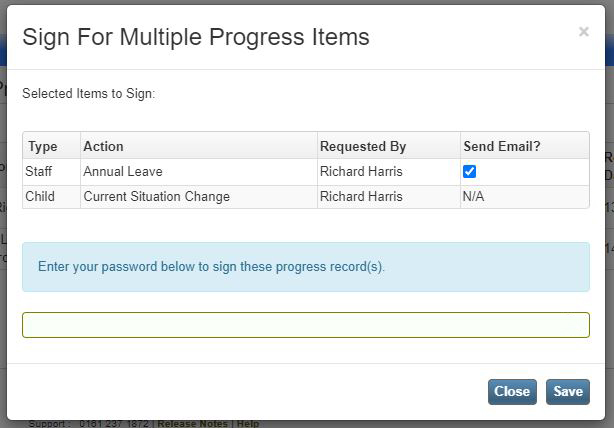
Once signed, the action/s will disappear from this list - if there are no actions to sign, the prompt on the main menu will not be visible.
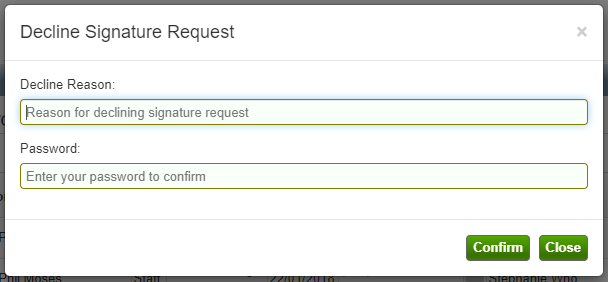
If you wish to decline a signature request, click the red decline icon, then enter your password and decline reason, and click Save. Declined signature requests will appear in progress but will not appear when a progress action is printed or send via the CHARMS-Portal.
Please note: There may be occasions where the 'You have progress actions to sign' button is visible but there are no progress actions to sign - this may be because the user does not have access to the record they have been asked to sign.