¶ Progress Tags
Tags can be setup by users with the EDIT_LOOKUP_LISTS permission.
In the lookup list 'Progress Tags' (found under 'Settings' > 'Edit Lookup Lists') users can create a progress tag with a name, description, and colour of your choice, as well as selecting which types of records you'd like it to be associated with.
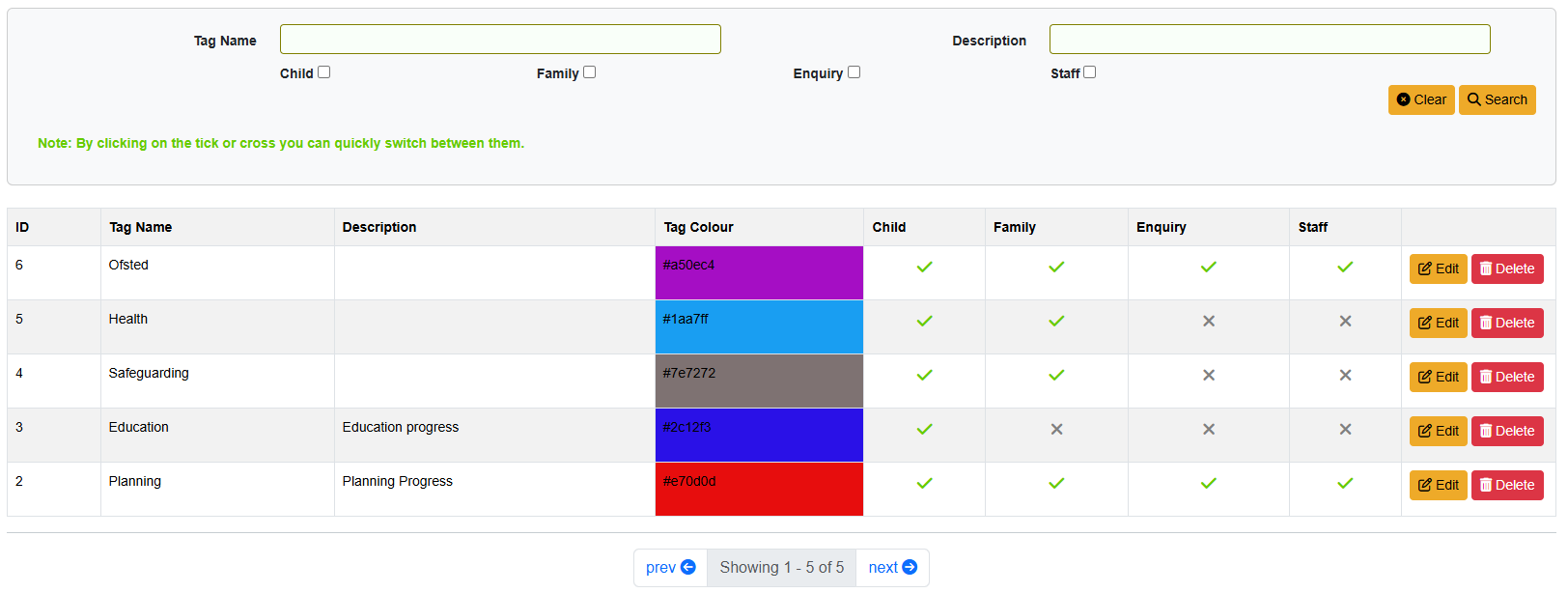
Click the ‘Add New’ button on the bottom bar to add a new progress tag.
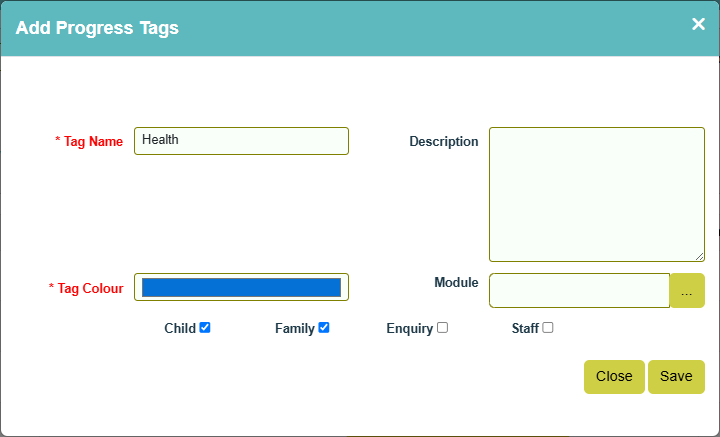
- Tag Name - mandatory Description - this data will be output when hovering over the tag in progress.
- Tag Colour - default is black, to change, click on the black, click the required colour on the spectrum, click above to set the required shade.
- Tick to make available in Child, Family, Enquiry or Staff progress.
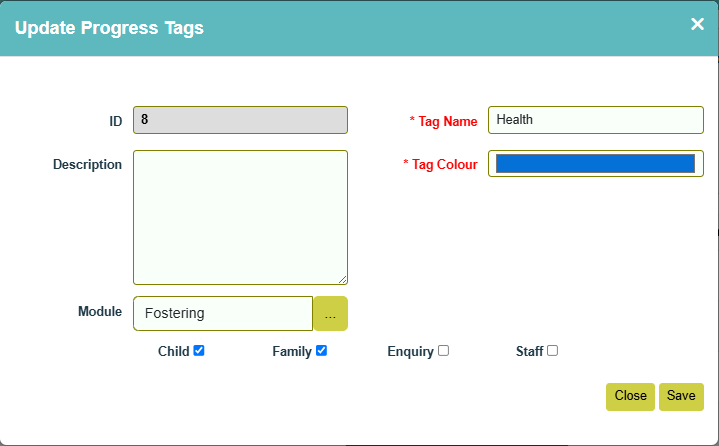
- Module - when not assigned to modules, tags will be available in all modules. So this is only required if your agency needs to make certain tags module specific. Once saved, click ‘Edit’ and assign modules - the tag will then only be available in selected modules.
When adding a progress action you can then tag it with as many tags as needed using the 'Progress Tags' field.
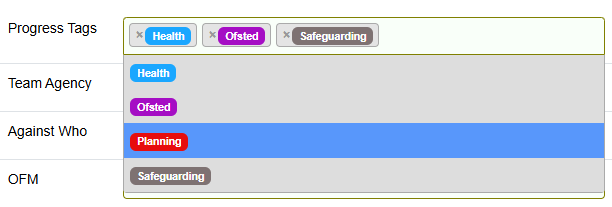
Selected tag/s will then be displayed against the action on the Progress screen.

From the Progress screen users will also have the ability to search for progress that has been tagged with certain tags.

Progress actions can be assigned default tags, meaning you don't have to add them manually each time as they will automatically populate. E.g. a progress action called Health Appointment could have the default of 'Health'. This is setup via lookups ‘Actions’, ‘Staff Actions’ and ‘PAS Actions’. Default tags can be removed if needed.

When progress actions are setup with default tags, child or family progress added by Carers or Third Party Users, the default tags will be output when the progress is viewed by normal agency users, but will not be output to the Carers or Third Party Users.
Tags can also be assigned to Record Card Templates by users with ADMIN_SETTINGS via Settings > Record Card Settings. After using the ‘Progress Tags’ filter on a Record Card, the tags will be output on the record card view, but will not be included on print view, or when using ‘Add To Progress’ or ‘Send Via Portal’.