It is good practice to periodically clear your browser's cache, cookies and browsing history.
This will help to avoid any issues wherein the browser has automatically saved information that may cause subsequent issues or conflicts.
For guidance on what these terms mean, please click here for guidance on cache, here for guidance on cookies, and here for guidance on browsing history.
If you encounter issues in CHARMS, our helpdesk may advise you to clear the browsing history, cookies and cache. Depending on your browser, there may be different ways of doing this.
There is a generic keyboard shortcut for clearing this information, Ctrl+Shift+Delete, which will open the respective options within your browser. This applies to Google Chrome, Internet Explorer, Microsoft Edge, and Firefox. For more details, see below.
¶ Google Chrome
In Google Chrome, click the 'three dots' icon in the top bar to open the menu.

From the dropdown menu, hover over 'History', and then 'History' again in the additional menu that opens.
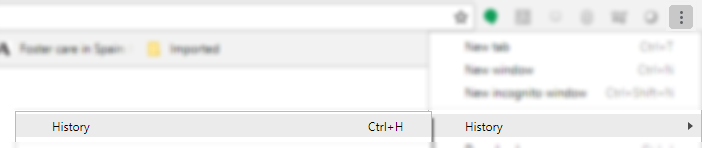
Click 'Clear browsing data'.

On the popup that appears, click 'Clear data' to remove browsing history, cookies and cached images and files.
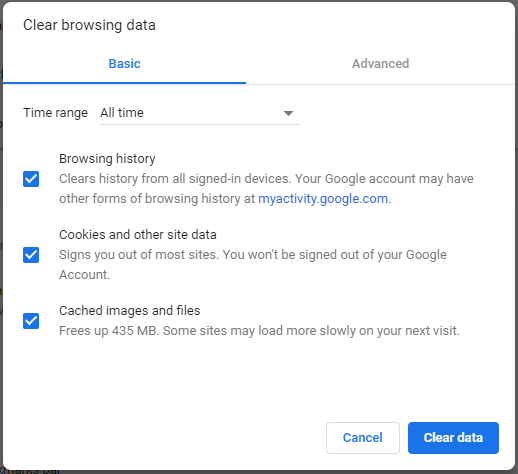
Close down the browser and reopen.
¶ Internet Explorer 11
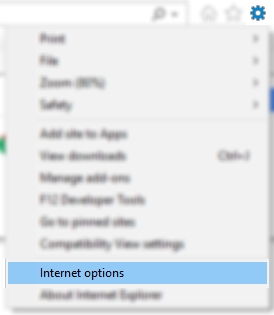
In Internet Explorer 11, click the 'cog' icon to open the Tools menu. Select Internet Options from the dropdown menu.
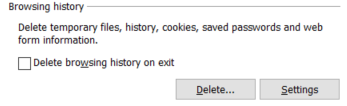
In the 'Browsing history' section, click 'Delete...'
In the 'Delete Browsing History' popup, click 'Delete' to remove temporary internet files, cookies and website date, and history. it may also be beneficial to tick 'Download History' so as to delete the list of files you have deleted.
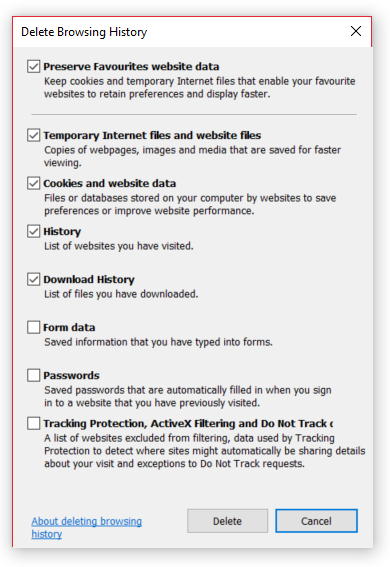
Internet Explorer will provide a confirmation message once all the selected browsing history has been deleted.

¶ Trusted Sites
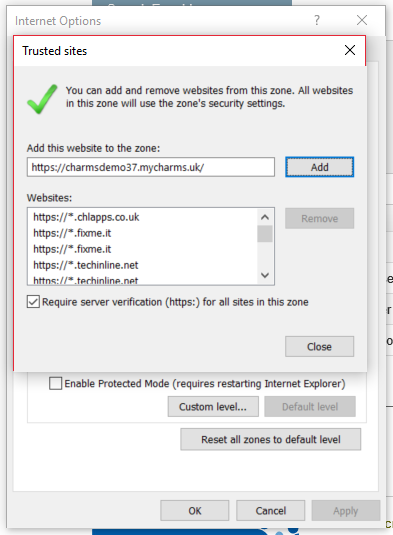
Internet Explorer also has an option for Trusted Sites - your CHARMS web address should be stored in here.
In the Internet Options popup, click the tab for Security, then the Icon for Trusted Sites. Click the Sites button to open the list of websites currently in the Trusted Sites.
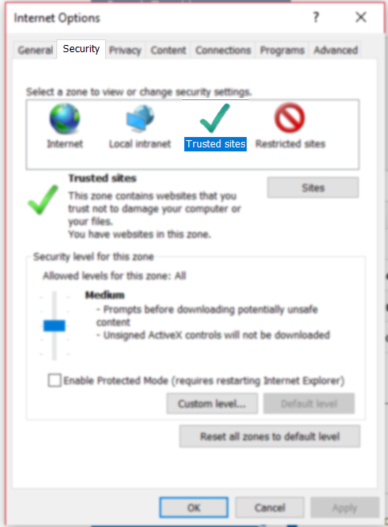
Type your CHARMS web address into the Add section, then click the Add button to confirm. Click Close to return to the Internet Options page.
¶ Microsoft Edge
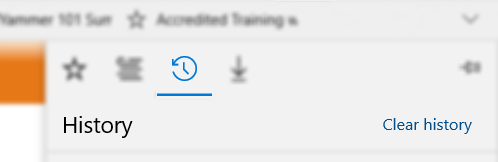
In Microsoft Edge, click the 'hub' icon to open the options menu.

On the options menu, click the History icon, then click 'Clear History'
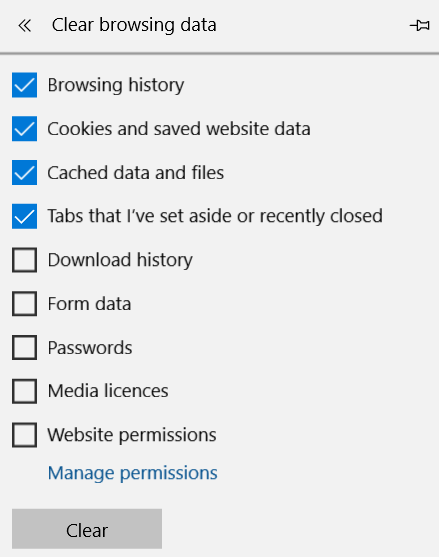
Click 'Clear' on the 'Clear browsing data' menu to remove browsing history, cookies, and cached data.
¶ Safari
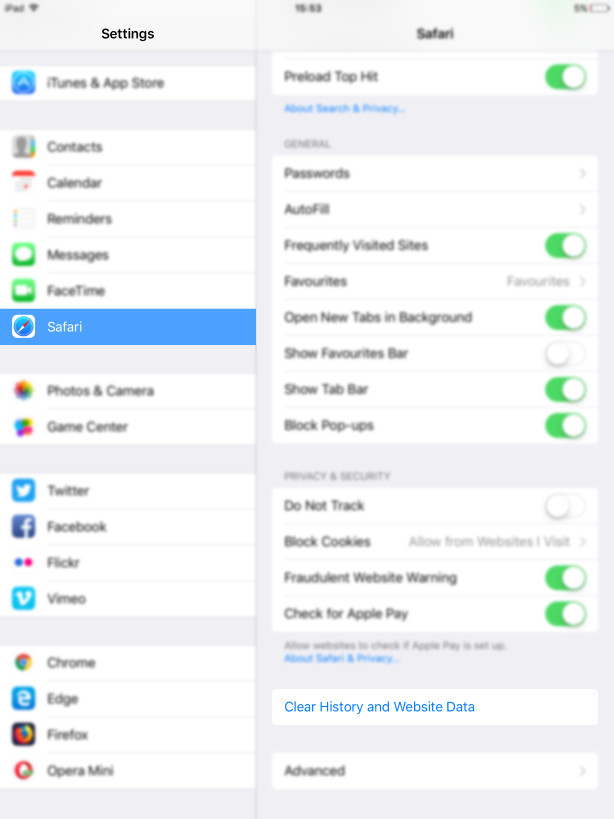
In Safari, click the Settings option, then Safari, and click 'Clear History and Website Data'
¶ Firefox
Click the Library option in Firefox, then choose the History dropdown list. Click the Clear Recent History button to open the Clear History popup.
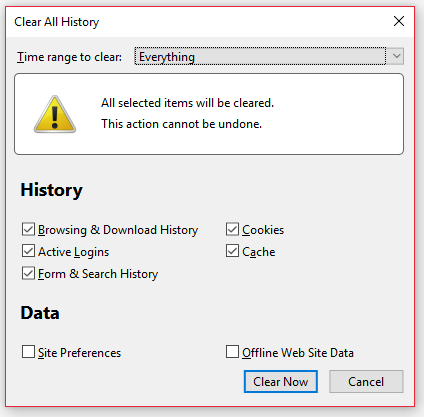
Press Clear Now to clear any saved browser data.