If you have the permissions to do so, you can add a staff record by clicking ‘Add New Staff’ from the navigation bar within the Staff section on the Main Menu.
¶ Staff Main Details
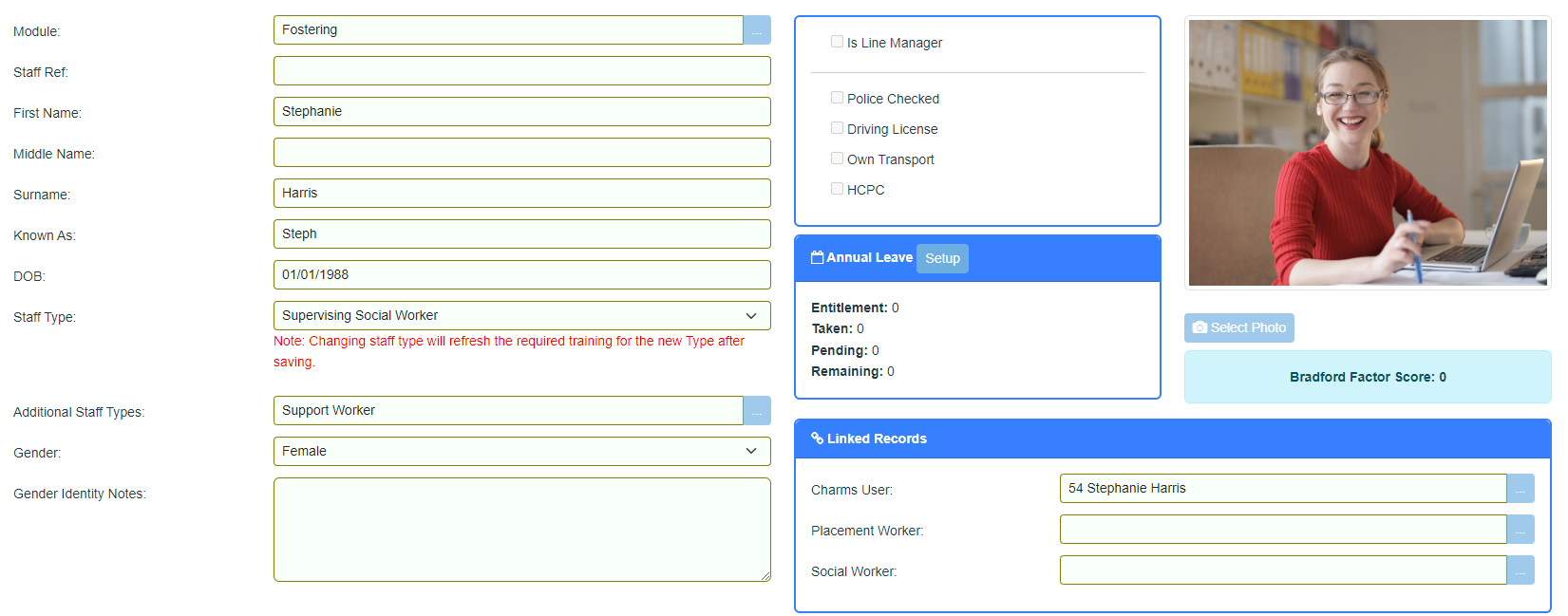
- Module – This will default to the current module, but can be changed on the lookup list if the member of staff needs to be visible in more than one module. If this field is left blank (i.e. a member of staff is not allocated to a module), users will be prompted to add a module.
- Staff Ref – Free type notes field, with option for localization.
- First Name – Enter the staff member’s first name.
- Middle Name – Enter the staff member’s middle name/s if they have any.
- Surname – Enter the staff member’s surname.
- Known As – Enter any other names the staff member is known as. i.e. Robert may be Bob.
- DOB – Enter the staff member’s date of birth.
- Staff Type – Select the relevant staff type from the lookup list.
- Additional Staff Types – Select all additional staff types from the job title lookup list.
- Gender – Choose the staff member’s gender from the dropdown list.
- Gender Identity notes – enter any additional information about the staff member's gender identity.
- Is Line Manager? – If the member of staff is a line manager and should be allocated staff records to view, tick this box. They will then appear on the Line Manager lookup list.
- Police Checked – Click to enter a tick if this member of staff has had a police check.
- Driving License – Click to enter a tick if the member of staff holds a UK driving license
- Own Transport – Click to enter a tick if the member of staff has their own transport
- HCPC – Click to enter a tick if this member of staff has got a care council certificate.
- You can upload a photo of the staff member by clicking the 'Select Photo' button.
¶ Annual Leave
If your organisation is using the Annual Leave function, use this section to manage this staff member's annual leave entitlement for the current annual leave year.
Click the 'Setup' button to view the staff member's annual leave entitlement for each respective annual leave year.
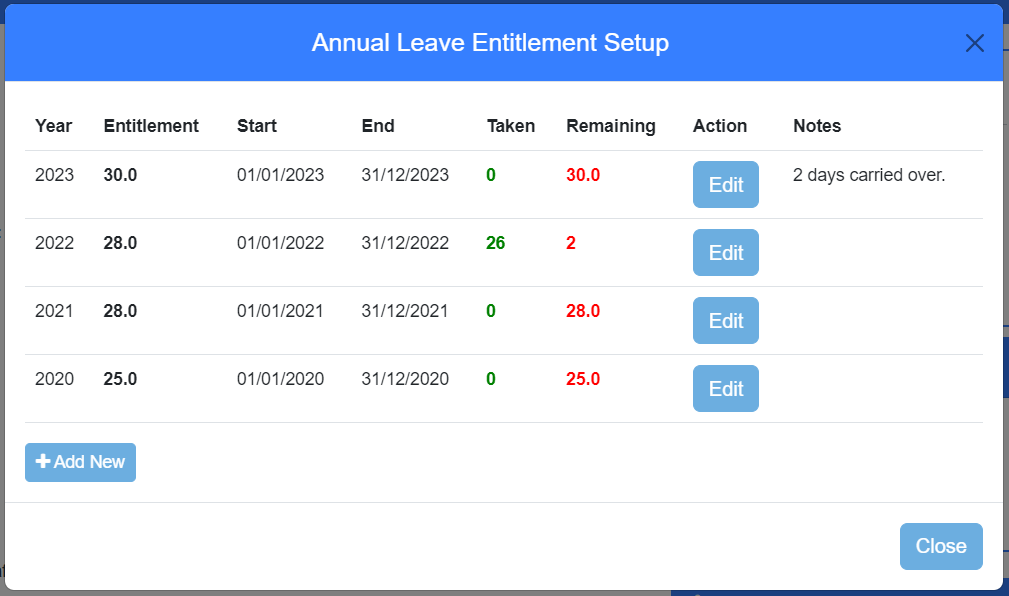
Click Add New to add a new annual leave year, choosing the Leave Year from the dropdown box, entering the Annual Leave Entitlement and the dates of the Leave Year, as well as any notes.
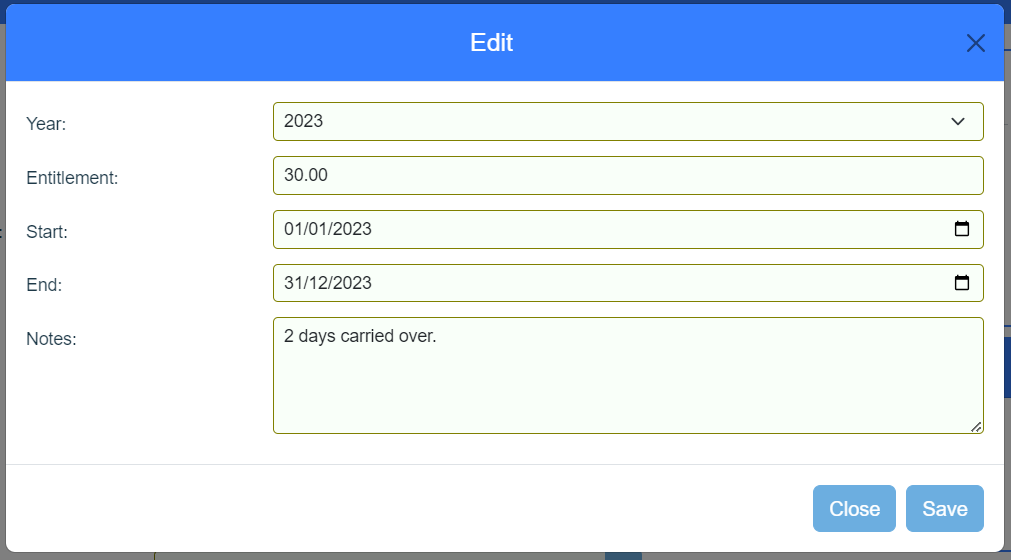
Please note: Please speak to your SCN Account Manager to set up your Annual Leave Years.
To manage annual leave entitlement for multiple staff at once please see our Wiki page Staff / Others - Search and Setup.
¶ Bradford Factor score
The Staff Main Details screen also includes the staff member's current Bradford Factor score.

This relates to the sickness episodes in the previous twelve months, and calculates a value based on:
The (number of episodes of sickness x the number of episodes of sickness) x the total number of days sickness.
This calculation uses progress items for the staff record where the date of the action is in the last twelve months and the progress action is mapped on the Staff Actions lookup list to 'Sickness'. When recording staff sickness, enter the actual number of days taken for the individual sickness episodes which then correctly calculates the Bradford Factor. After selecting staff progress action 'Sickness' the field 'Number of Days' will be available. Enter 'Number of Days' to manually adjust the sickness absence e.g. enter 0.5 for 1/2 day. If a number is entered, the Bradford Factor calculation will use this instead of the dates.
Depending on the score, this is then given a rating to advise on what should happen:
| Score | Rating |
|---|---|
| Less than 50 | None needed |
| Between 50 and less than 125 | Consider a verbal warning |
| Between 125 and less than 399 | Consider a first written warning |
| Between 400 and less than 649 | Consider a final written warning |
| Greater than 649 | Consider dismissal |
Please note: The Bradford Factor Recommendation is visible to Line Managers and users with MANAGE_STAFF access level only.Please speak to your account manager if your agency would like to amend the default values for Rating recommendations above.
¶ Linked Records
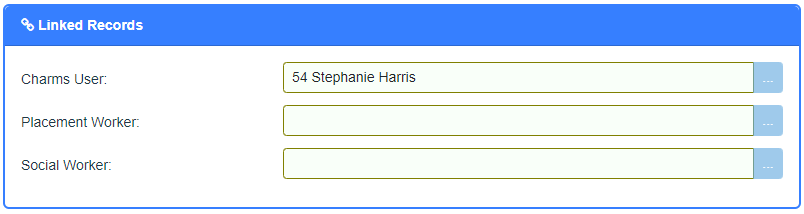
- CHARMS User – If this member of staff is a CHARMS user within the current module, select them from the lookup list. This will manage appropriately which records the user can see - linking their staff record to their user account will restrict them to their own user account; if they are a line manager or have the MANAGE_STAFF access level, this link will mean that they will not see high sensitivity progress items on their own record.
- Family Placement Worker – If this member of staff is on CHARMS as a family placement worker, select them from the lookup list
- Social Worker - If this member of staff is on CHARMS as a social worker, select them from the lookup list
Please note: When creating a new user account in Administer All Accounts, there is the facility to create CHARMS users as staff members automatically. This will populate the CHARMS user field in the staff record.
¶ Staff Required Training / Additional Staff Required Training
This lists all training required based on the staff member's staff 'type'.
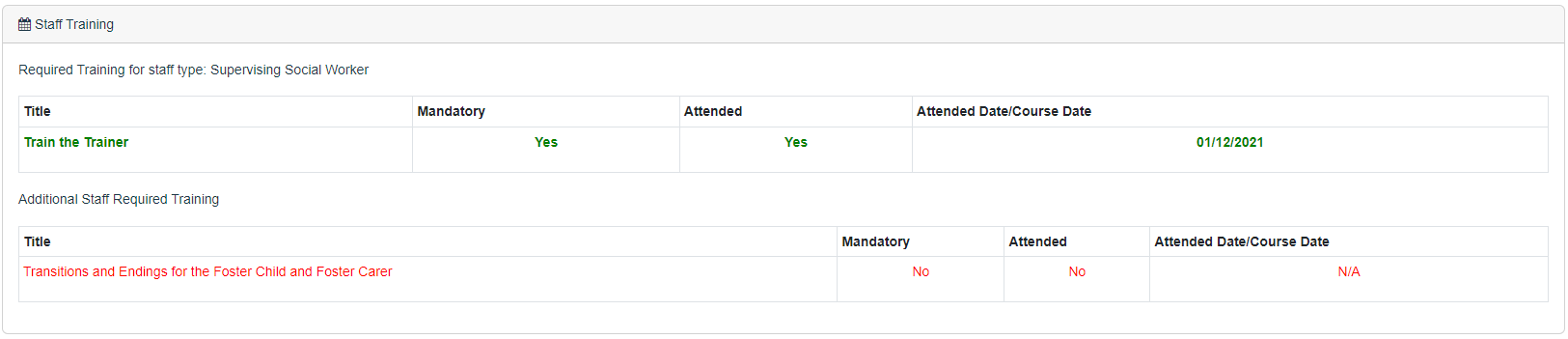
Once the required course titles are setup against each staff type, when a new staff record is created, the required training will be listed here in red. A course title can be removed if not required for a particular staff record as well as other course titles can be added for the staff record if required. Once a training course has been attended, it will show in green with the attended date. If the training was not attended it will show as Attended ‘No’. If a training course has been attended more than once, the latest date will be output. If the staff record was cancelled from a training course, these rows will not be output. If the course titles against a staff type are amended via the staff type lookup list, lists against existing staff records will be updated to include the new course titles added. If a staff type is amended on an existing staff record, the list of required training will be updated to reflect the new staff type.
Any training added manually will be displayed here under Additional Staff Required Training.
Please Note: To define the course titles for a staff role and set which are mandatory use Edit Lookup Lists > Staff Type > Edit > Add New Required Course Titles For New Staff
¶ Line Manager Allocation
To add a line manager to the current record, click the 'Add Line Manager' button.

You can then choose from the list of staff members who are currently ticked as Line Manager.
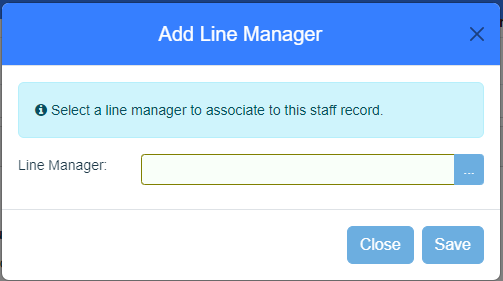
Once you have selected a line manager, click 'Save'.
All current line managers will be displayed on the staff member's Main Details.

¶ Employment Details

- Employment Type – e.g. Full time or Part Time
- Start Date – Enter the date when the staff member commenced employment - this will add a progress item for 'Start Date'
- End Date – Should be entered if and when the staff members employment ceases - entering a date here will prompt to archive the staff record and will enter a progress item for 'End Date'
- Duration of Employment – this is calculated based on the start date and either current date or End Date
- Archived – tick this if the record is no longer required - Archiving a member of staff will add an entry to the Staff Progress for the Archived Date, and will grey out their entry in the Staff search screen.
- Closed Reason – if the record is closed, please choose the reason from the dropdown (this is from the Withdrawn Reason lookup list where Staff is ticked)
- Contract Type – e.g. Permanent, Temporary or Agency.
- Contracted Hours – Enter the staff member’s work hours
- Leave Entitlement – enter the number of days’ leave to which the staff member is entitled, including half days.
¶ Contact Information
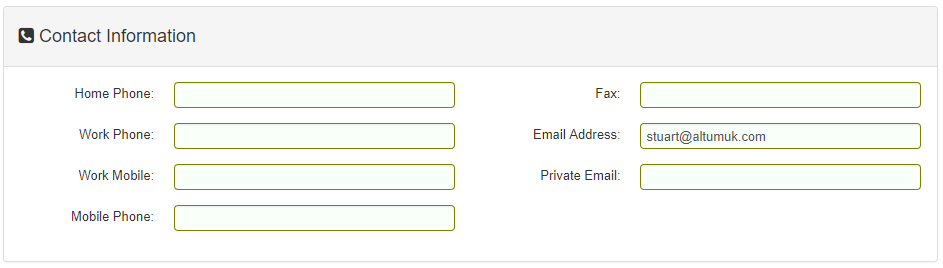
- Home Phone – Enter the staff member’s home telephone number
- Work Phone – Enter the staff member’s work contact telephone number
- Work Mobile – Enter the staff member’s work mobile telephone number
- Mobile Phone – Enter the staff member’s mobile telephone number
- Fax – If applicable, enter a fax number for the staff member
- Email Address – Enter the staff member’s email address
- Private Email – Enter the staff member’s email address
¶ Work Address
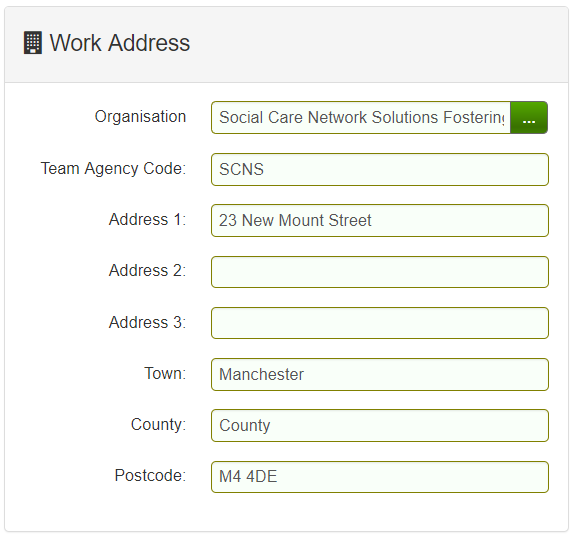
- Organisation – Select the organisation from the lookup list. If entered, this will populate the address fields.
- Team Agency Code – displays the Agency Code of the Organisation selected.
- Address, Town, County, Postcode – Enter the relevant address details for your company (unless already populated)
¶ Home Address
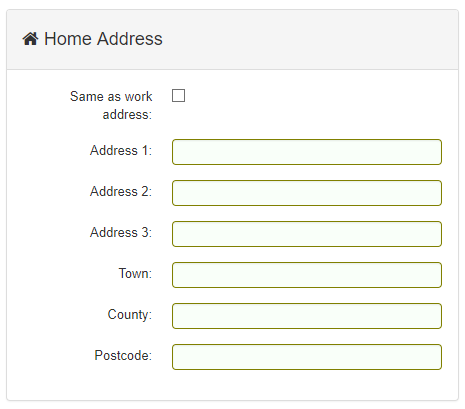
- Same as work address – Click to enter a tick if the staff members home address is the same as their work address
- Address, Town, County, Postcode – Enter the home address details for the staff member
Please note: Home address will not be visible to users with MANAGE_STAFF_ADMIN