The Annual Leave function allows users to request, edit, and cancel annual leave requests within CHARMS.
This section requires your organisation's annual leave years to be configured within CHARMS - please speak to your SCN Account Manager regarding this.
It also requires some mapping on your Staff Actions lookup list- the progress action you use for Annual Leave should be mapped to 'Annual Leave' and the action you use to record when annual leave is cancelled should be mapped to 'Annual Leave Cancelled'
Once annual leave is mapped to the appropriate code, it will no longer appear in the Progress screen and will only appear in the Manage Annual Leave section.
¶ Manage Annual Leave Entitlement
Before annual leave can be requested the annual leave entitlement must be set up. Please see our Wiki page Staff / Others - Search and Setup for setting up multiple staff at once or to edit annual leave entitlement for an individual staff member see our Wiki page Staff - Main Details.
¶ Request Annual Leave
To request annual leave, click the Request Annual Leave button to open the popup.
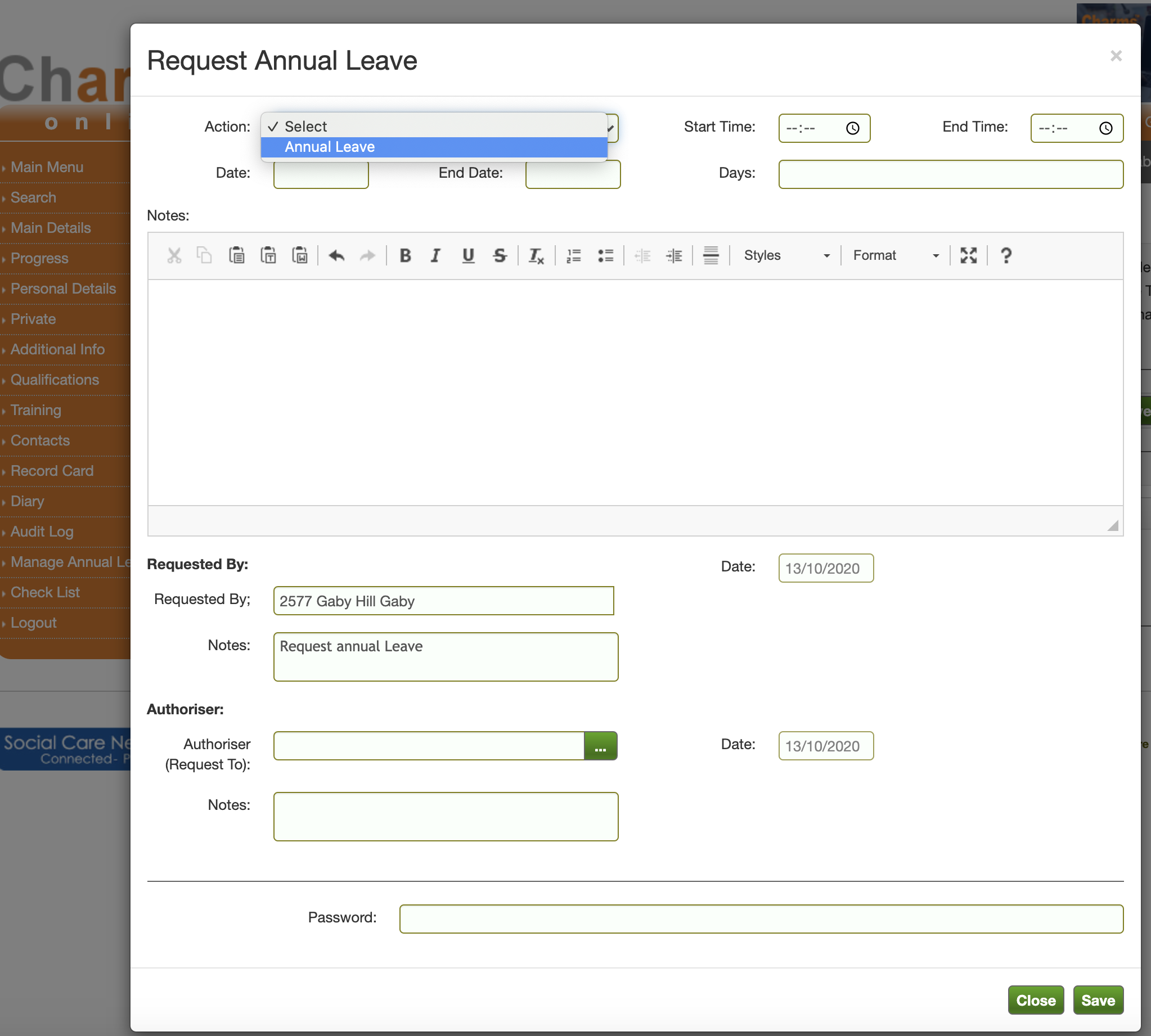
Choose the appropriate Annual Leave action from the lookup list, then enter the start and end dates and times for the annual leave being requested. If the period being covered includes weekends or bank holidays, please manually update the Days field.
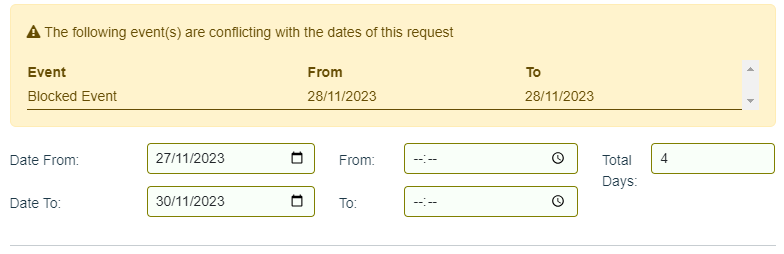
If the date range selected includes blocked events from the annual leave calendar a warning message will be displayed.
Choose the Authoriser from the lookup - this will be users with access to the current staff record who have the MANAGE_STAFF access level or who are Line Managers.
If you are requesting leave on behalf of another member of staff, i.e. you are a line manager, you will not see the 'Authoriser' box as you are the authoriser, so the annual leave automatically authorises/signs using the current user's details.
Enter any notes, then enter your CHARMS password and click Save. This will notify the authoriser and add a row to the Annual Leave section.

Only once annual leave is approved will the Calculated Annual Leave field on the Staff Main Details be updated.
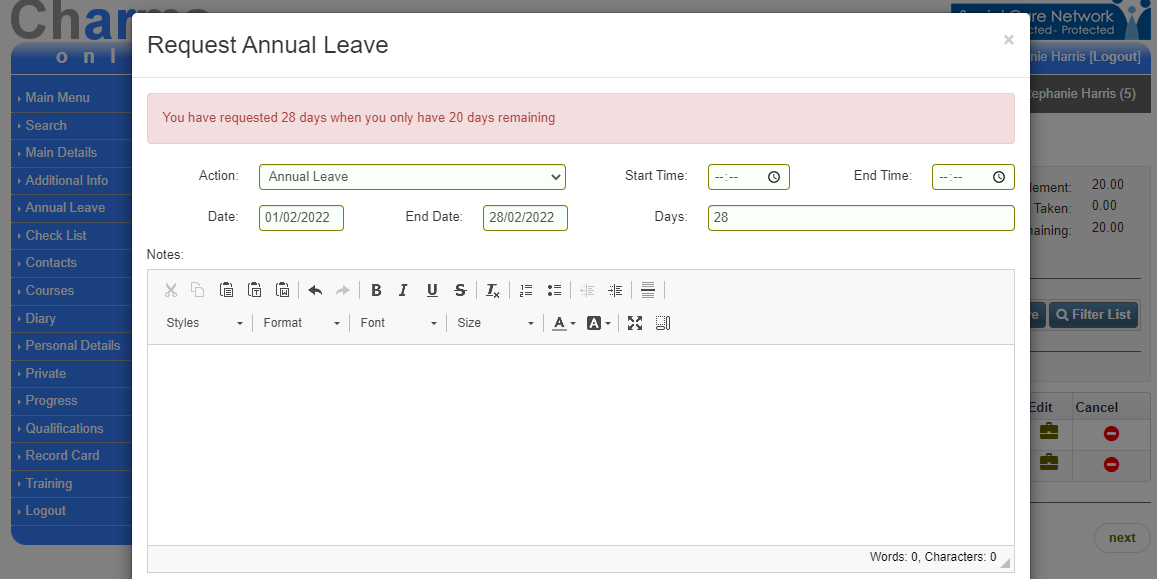
If you try to request more leave than your remaining entitlement, a warning is displayed and the request cannot be saved.
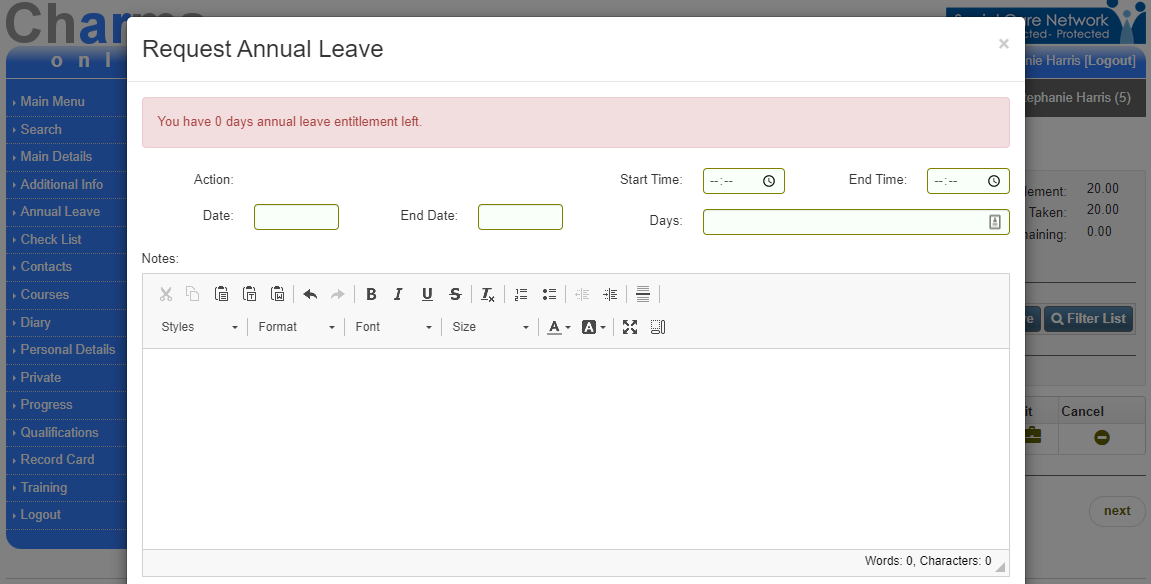
If you have no entitlement left, when you click to add an annual leave request you will get the message 'You have 0 days annual leave entitlement left.'
¶ Editing Annual Leave
If an annual leave request has been made and needs to be edited, click the Edit button to make any amendments. The edited request will need to be authorised in the same way as the initial request.
Annual Leave requests that have already occurred can only be edited by users with the MANAGE_STAFF access level or who are Line Managers - users cannot amend requests in their own record that have already occurred.
If the edit to the annual leave changes the number of days being used, this will automatically update the Calculated Annual Leave fields on the Staff Main Details.
¶ Cancelling Annual Leave
If an annual leave request has been made and needs to be cancelled, click the Cancel button against the request. Enter your CHARMS password and click the Cancel Annual Leave request button to cancel the request.
This will add a linked progress item for Annual Leave Cancelled to the original Annual Leave request.
Annual Leave requests that have already occurred can only be cancelled by users with the MANAGE_STAFF access level or who are Line Managers - users cannot amend requests in their own record that have already occurred.
This will automatically update the Calculated Annual Leave fields on the Staff Main Details.
When a user cancels annual leave the authoriser will receive an email notification.
¶ Approving Annual Leave
Annual Leave requests will appear in the 'You have progress items to sign' section on the Main Menu - please see here for more details.

Click the ID number to view the request in detail, then click the Sign icon to enter your CHARMS password to approve the request.
¶ Viewing Annual Leave
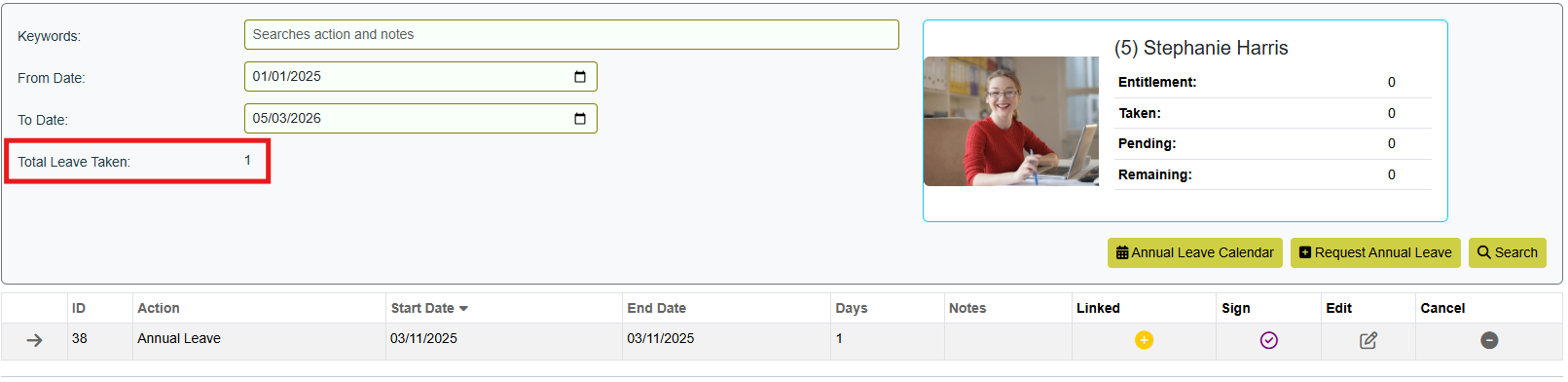
To see how much annual leave a staff member has taken, enter a date range and CHARMS will display the number of days taken for quick reference.
¶ Annual Leave Calendar
The annual leave calendar allows you to see which staff have booked annual leave and when.
All users that have access to staff records will see 'Annual Leave Calendar' within the 'Annual Leave' section. This will show any staff that are in their team / organisation on a list that can be filtered as well as any booked leave on the calendar.
Please note: the user must be linked to a staff record.
Users with the permission ANNUAL_LEAVE_CALENDAR can view annual leave for staff in all teams (labelled organisation). This permission also enables the user to add blocked dates, which show in red on the calendar. The blocked dates function does not prevent users from booking leave, it is just a feature to highlight dates that all staff should be aware of when booking annual leave.
Please note: Only active staff records (with no end date and not archived) that have a linked CHARMS user will be output on the left hand team lists and calendar.