This section is only available to users with the EDIT_LOOKUP_LISTS access level
The Action lookup list is used in the Progress screen to log events and activities that have occurred with the the records in CHARMS. It is an important list that should be managed carefully - always speak to your SCN Account Manager before making changes to this section as there can often be implications within the wider system.
This list is module specific, so if your organisation has multiple modules, there can be different lists of actions for each module. There are also options to make actions only available in children's records or in families' records, or available for carers to record. Within the 'Edit Lookup Lists' section, click 'Action' to open the 'Action Lookup List' search screen.
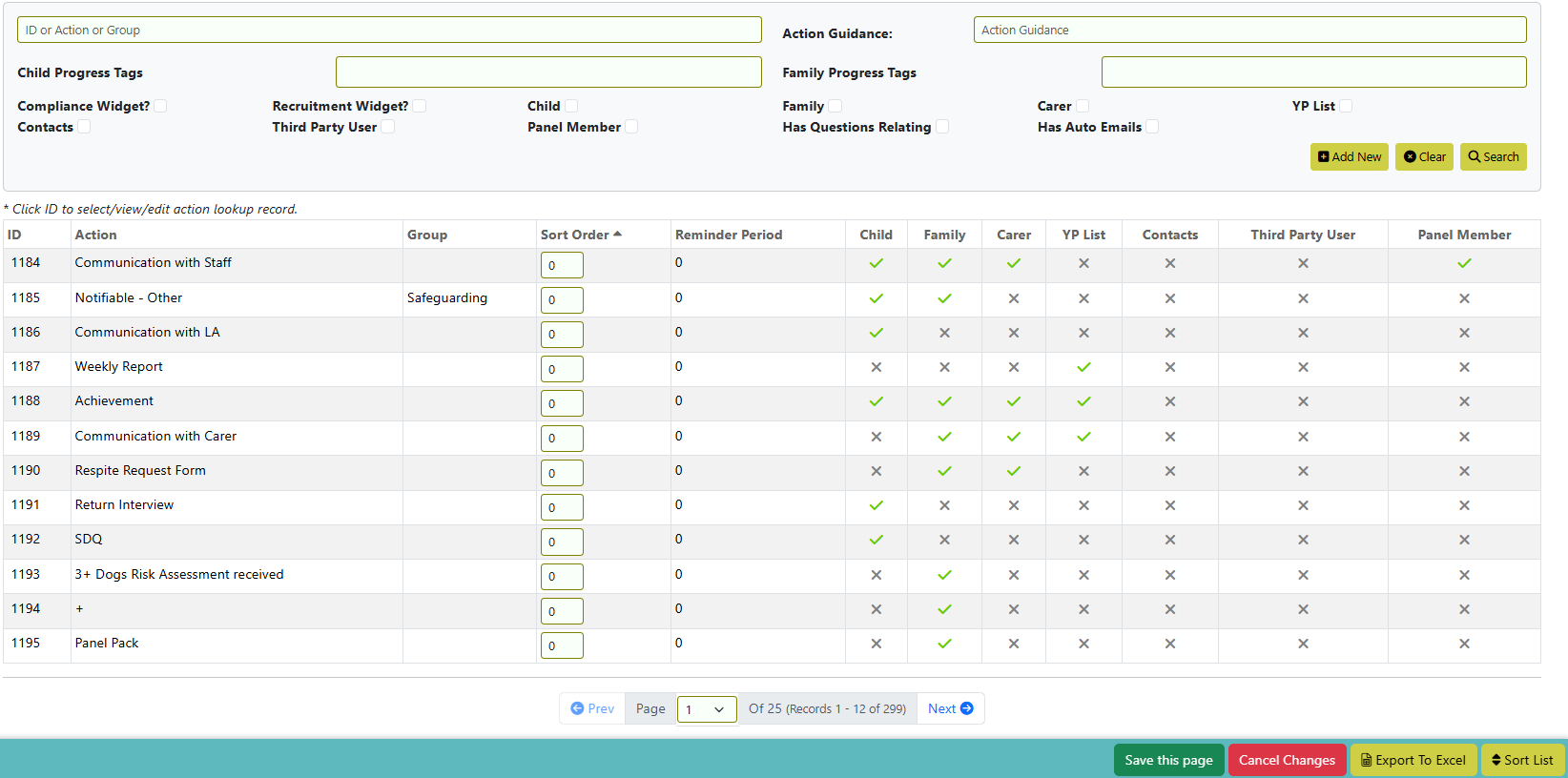
Within this screen you can search for an action, actions within a group, or actions that are available in each type of record, e.g. child or family.
Ticking 'Compliance Widget?' will show any action that has Compliance Widget enabled.
Ticking 'Recruitment Widget?' will show any action that has Recruitment Widget enabled.
You can also search by which progress actions have Progress Tags assigned or by the guidance recorded against an action.
The Sort Order can also be amended directly in this screen - enter the new value and click 'Save this page'.
To view an existing progress action, click on the row to open the detailed view of the progress action. Clicking 'Add New' will open a blank details screen to complete.
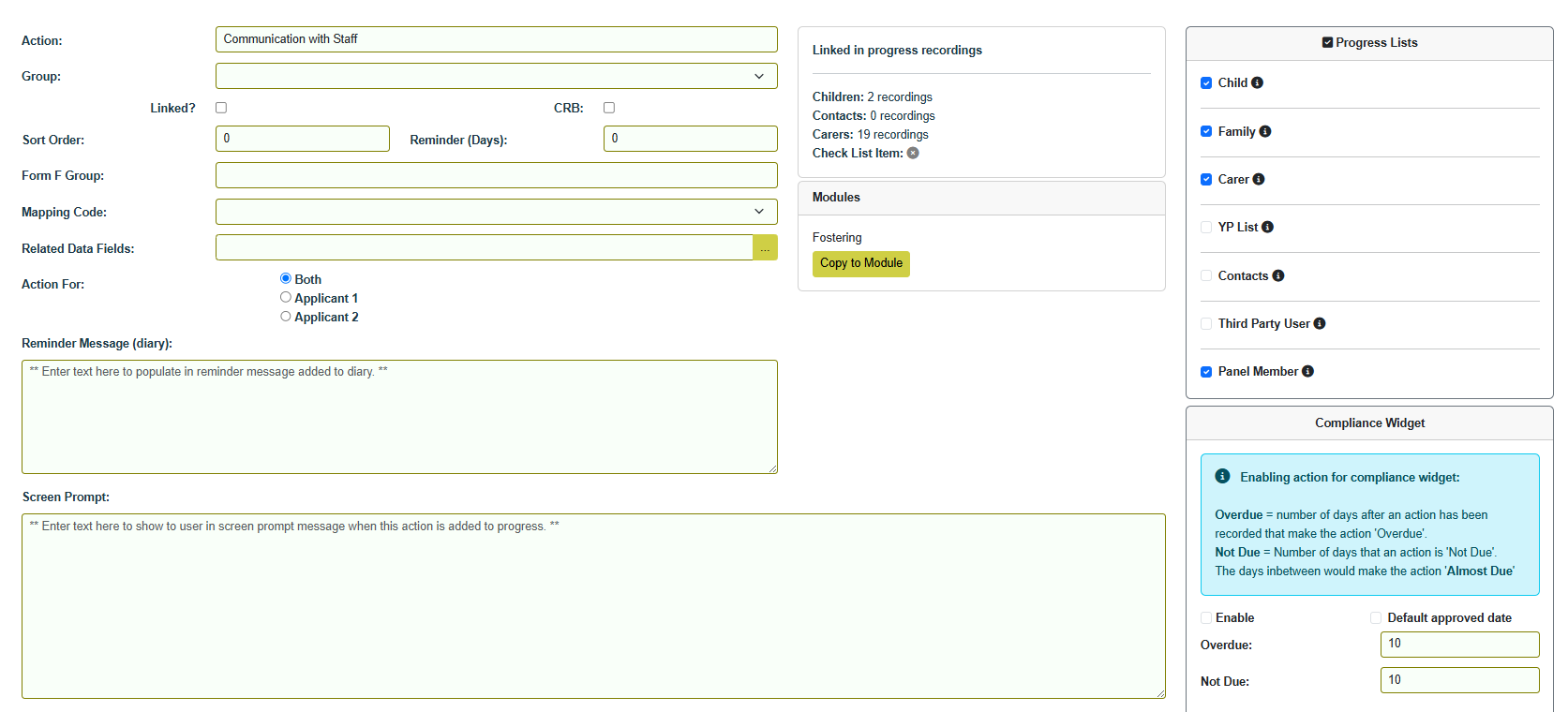
- Action - this is the action itself that will appear when users are recording - maximum length 255 characters.
- Group - putting an action into a group allows additional functionality
- Safeguarding - this action will be available in the Significant Events/Chronology section of children's records, and will prompt to record a Body Reported To wherever it is recorded.
- Correspondence - this action will be available to record through the Mail Merge functionality.
- Education - this action will be available when adding to progress via the school in the Education section of a child's record.
- Linked? - when actions that have this ticked are recorded, they will prompt to create a link between two events, e.g. notified and withdrawn, to enable recording of referral episodes.
- CRB - when actions that have this ticked are recorded, and the recorded action is linked to an Other Family Member, this will add the date of the progress action into the Other Family Members section.
- Sort Order - this determines where in the list this action appears when users are selecting an action to record.
- Reminder Period (Days) - a value greater than zero in this field will prompt a diary reminder in the number of days specified.
- Form F Group - if your organisation is using the Form F or PAR within CHARMS, there are certain codes that need to be added to map relevant police/background checks - these should be entered against the actions that correspond to the respective completed check.
- DBS/Enhanced CRB Check (England and Wales) - enter the code: DBSCheck.
- Disclosure Scotland - enter the code: DisclosureScot.
- PoC (Northern Ireland) - enter the code: PoC.
- Vetting and Barring - enter the code: Vetting and Barring
- Mapping Code - choose the relevant code to map the action on your organisation's lookup list to the values required by statutory reporting.
- Related Data Fields - allows administrators to define and manage custom data fields that can be linked to actions, action groups, and progress entries. To setup, go to Settings > Edit Lookup Lists > Action Related Data Fields.
- Action For - if the progress action potentially pertains to both applicants, e.g. Home insurance, then 'Both' should be selected. If the progress action pertains to just applicant 1 or just applicant 2, e.g. Police Check App1 or Police Check App2, then 'Applicant 1' or 'Applicant 2' should be selected.
- Linked in progress recordings - This section will tell you if the current action has been recorded on children records, contacts, or families. If there is a green tick next to 'Check List Item' then this action is in a stat check/check list.
- Modules - this details which module/s the action is currently listed in. If you have multiple CHARMS modules, e.g. fostering and residential, you can use the 'Copy to Module' button to copy the progress action from the current module to another.
- Reminder Message (diary) - when the diary reminder is generated, the value in this field will appear as the reminder text - maximum length 255 characters.
- Screen Prompt - any message in here will appear immediately as a popup on screen when the action is selected - maximum length 255 characters.
- Compliance Widget - The 'Compliance' widget gives you the ability to monitor actions for being ‘Not Due’, ‘Almost Due’, and ‘Overdue’. In your ‘Action’ lookup list each progress action can be marked as ‘Enabled’ in the Compliance Widget box. This will make the progress action appear in the Compliance Widget on the Main Menu. For every action you can set the number of days old an action can be before it is displayed as ‘Overdue’ (which will be shown in the red ‘Overdue’ column) and how recent an action can be in order to still be classed as ‘Not Due’ (shown in the green ‘Not Due’ column). Actions falling between these two periods will be classed as ‘Almost due’ (shown in the amber ‘Almost due’ column). For actions that require the starting date calculation to be based on the family approval date - tick ’default approved date'. This means they are not shown as “due” too early when no progress has been recorded. After the first due date, future due dates continue to use the normal anniversary-based calculation from the last recorded action. You can mark actions as N/A, directly from the compliance details popup screen via the “Set As N/A” option via the Widget on the Main Menu. If the compliance widget action is already marked as N/A via the records checklist and stat checks screen, this will be reflected on the compliance widget.
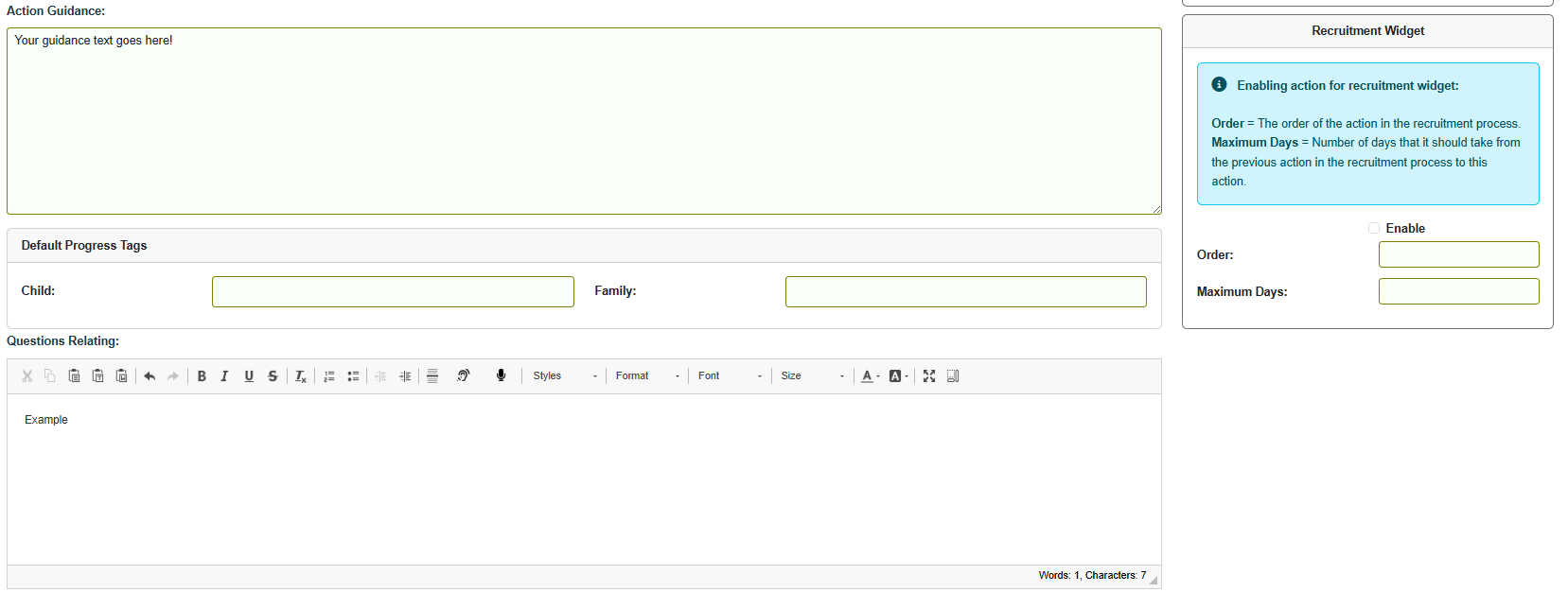
- Action Guidance - here you can enter some notes about how the particular action should be used. When adding a progress with action guidance, the link 'Action Guidance' will be displayed, which can be clicked on to show the guidance. You can also run the "Actions lookup list detail - all modules" report and it picks up this new field, thereby giving you instructions for staff on all important actions
- Questions Relating - any values in here will appear in the progress notes automatically when the action is selected. This can be useful to guide users when they are recording and to eliminate unnecessary paperwork.
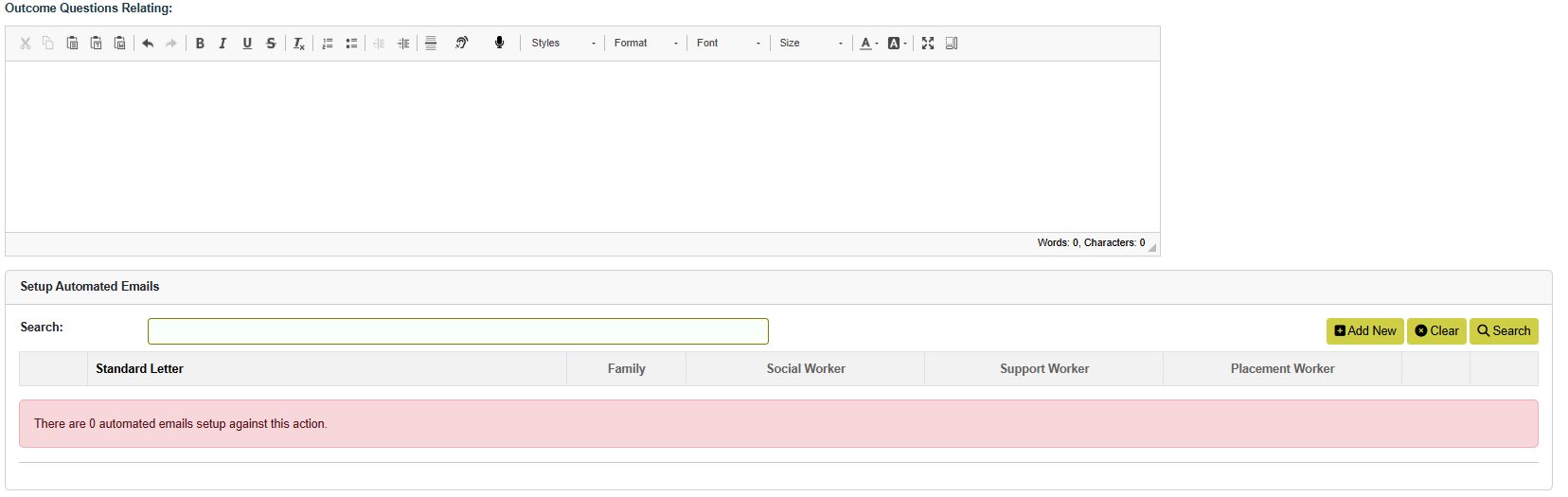
- Outcome Questions Relating - any values in here will appear in the Outcome Notes of the progress action automatically when the action is selected.
- Setup Automated Emails - to set up automated emails against any action please see our Wiki page HERE.
- Recruitment Widget - Please see our dedicated Recruitment Widget page for details on how to setup and use this feature.
- Action Workflow - Here you can create an action workflows which will then appear in the Progress Workflow widget. Master progress actions and the subsequent follow-up actions have to be defined in the action lookup list. Against the master action, click the "Action Workflow” button, add the relevant follow up actions, and define the workflow order.

- Delete This Action - this button will delete this action. Please consult your user manager our CHARMS account manager before you delete any actions as it could negatively impact your usage of CHARMS.
- Duplicate Action - this button will let you duplicate an action to another module and give you the option to rename the action. When pressed this opens a popup with the option to select which module you wish to add the new action to. This allows users to quickly create new actions but use the questions relating and other setup based off an existing action configuration.
- Please Note: On clicking Save the action being added is checked to ensure that it does not already exist in the selected module. If it does already exist you will be shown the message: 'You cannot save this action to all selected modules as it already exists in' and it will list the modules the action already exists in. You then have the option to de-select the modules it already exists in and try the save again.
¶ Progress Lists
Actions can be set to be available in the following record types. You can tick any/all that apply, for example, if you wanted a user to be able to add this action to family records only you would tick 'Family'.
| Progress List | Details |
|---|---|
| Child | this shows the action when recording in a child's record |
| Family | this shows the action when recording in a family record |
| Carer | this makes the action available for carers to record in their own progress through the Carer Login |
| YP List | this makes the action available for carers to record in the progress of children placed with them through the Carer Login |
| Contacts | this shows the action when recording in a contact's record |
| Support Worker | any actions ticked with this are available for users with the SUPPORT_SOCIAL_WORKER access level to record |
| Third Party User | any actions ticked with this are available for users with the THIRD_PARTY_USER access level to record. Actions should also have the Child or Family List items ticked to allocate to the respective type of record. |